


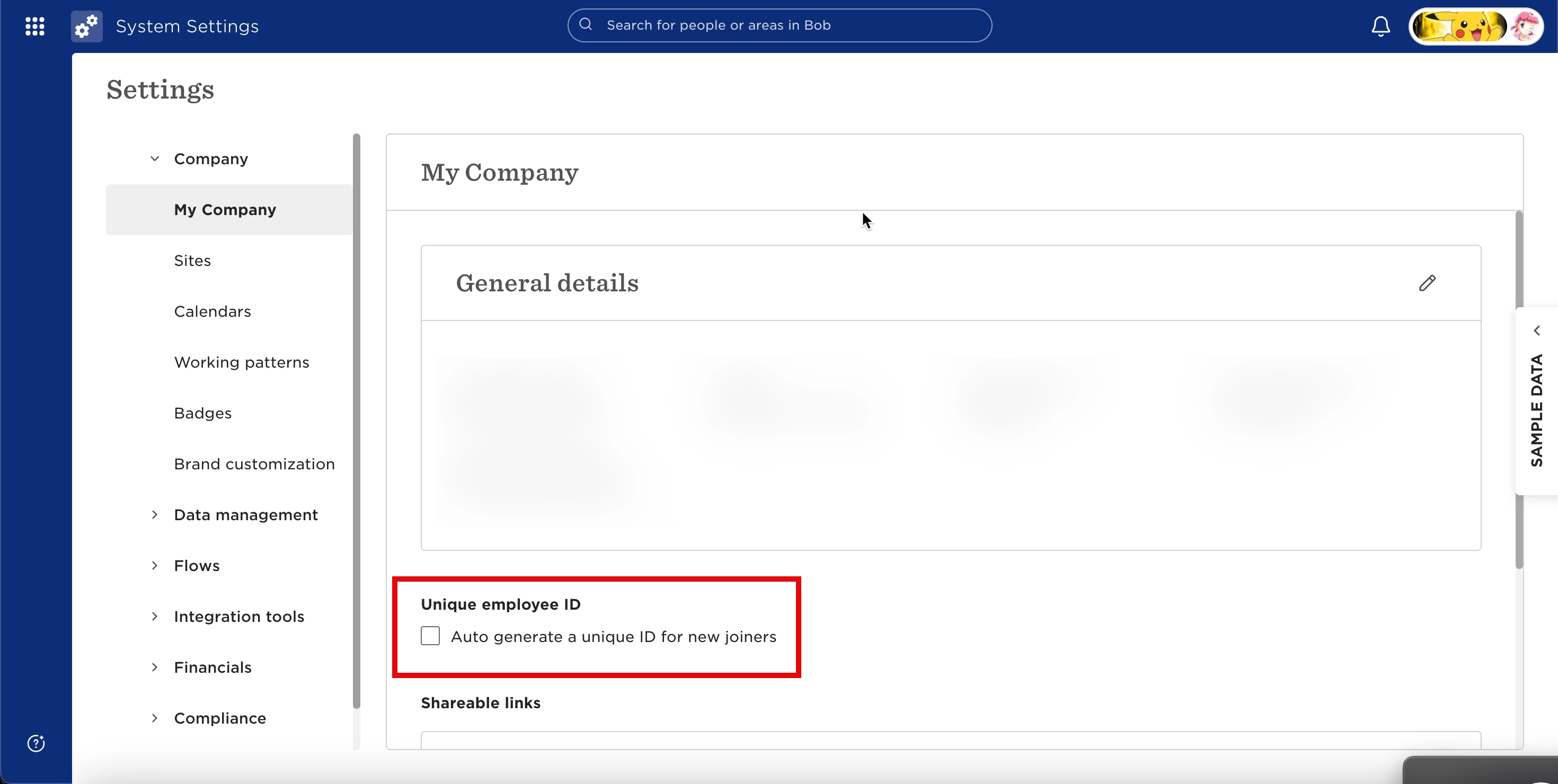
You can assign employee IDs to existing employees who don’t yet have them without disrupting Bob’s automatic ID generation.
To do this safely, temporarily disable the Generate employees ID setting before importing any updates. Once the update is complete, you can enable it again and Bob will continue generating IDs from the latest number in sequence.
Step 1: Export your current Employee IDs
-
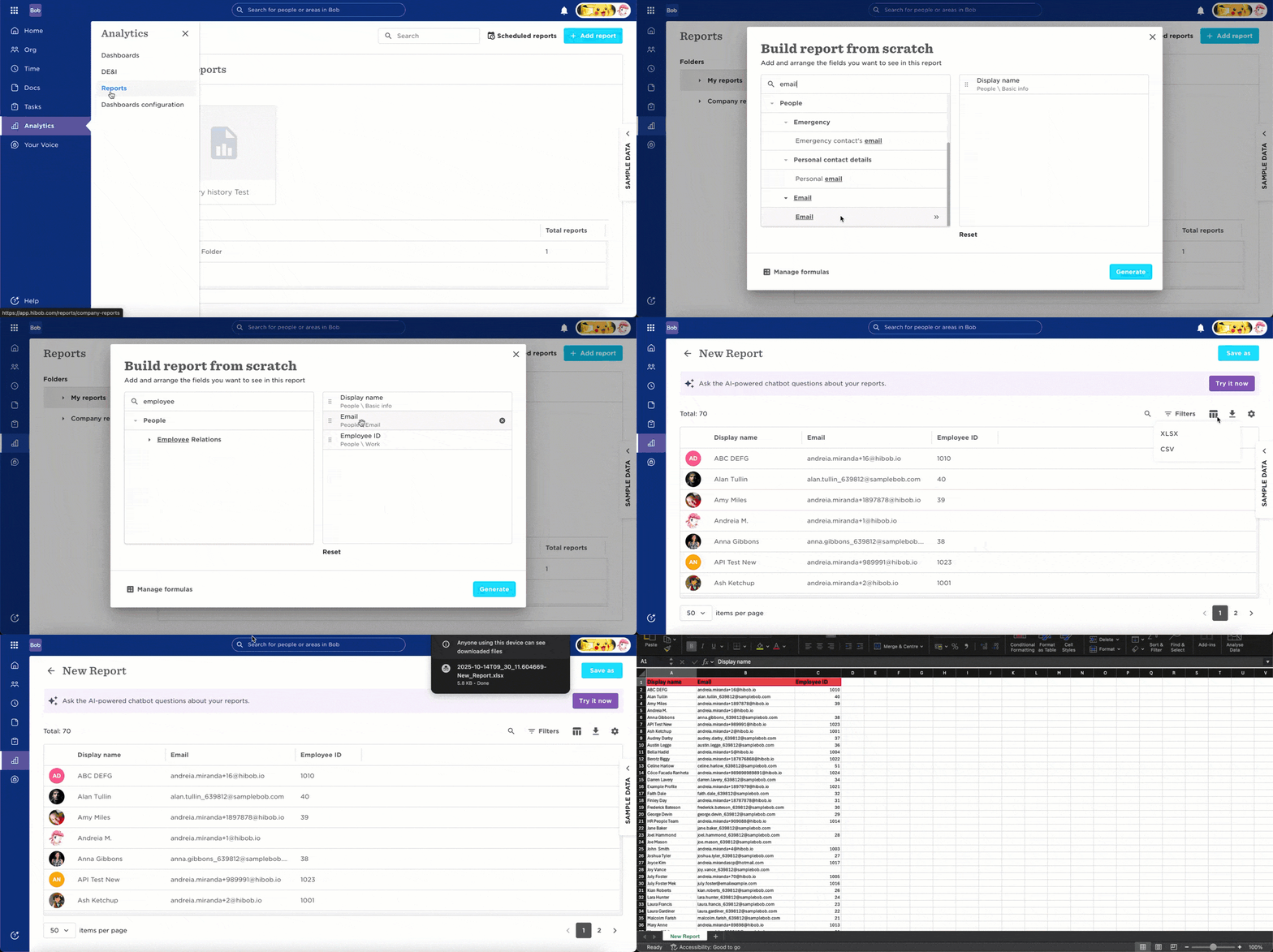
Go to Analytics > Reports and select General Report.
-
Include the fields Email, and Employee ID.
-
Download and open the file in Excel.
Step 2: Update Employee IDs in Excel
-
Edit the Employee ID column as needed by adding the missing ID's for those employees.
-
Make sure each ID is unique and not repeated across employees.
Step 3: Import the updated file into Bob
-
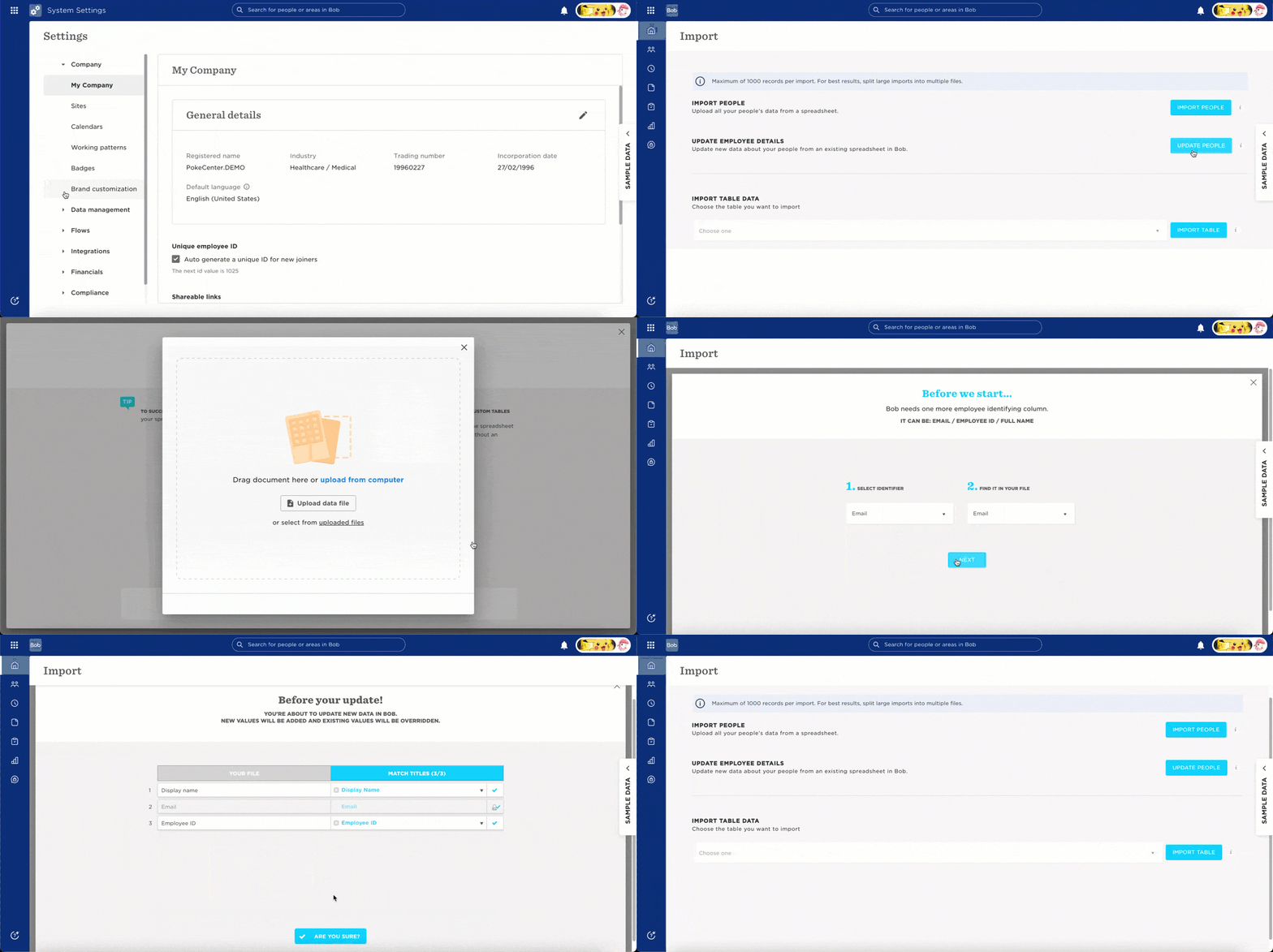
Go to System Settings > Data Management > Import > Add or update people's information.
-
Select Update Employee Details and upload your file.
-
Choose Email as the identifier.
-
Confirm that the fields match correctly, then click Done to complete the import.
Tip: We recommend testing this process with one employee first to ensure everything works as expected. Once confirmed, you can proceed with the full update.
Once the bulk update has been successfully completed, please enable the “Generate employees ID” option again. Bob will recognize the latest employee ID in the system and continue generating new employee IDs sequentially for future employees. This helps maintain unique IDs across your account, even when multiple users are creating employee records at the same time.
If you run into any issues during the process, please, contact our support team for further guidance.