


To allow coworkers to share messages (for a retirement gift, for instance) without the specific employee viewing the post, you have two possible approaches.
Option 1 : Restrict Shoutout Visibility Using Permission Groups (more complex)
If you'd prefer the employee not to have access to shoutouts at all, you can adjust shoutout permissions.
Go to System Settings > Account > Permission Groups.
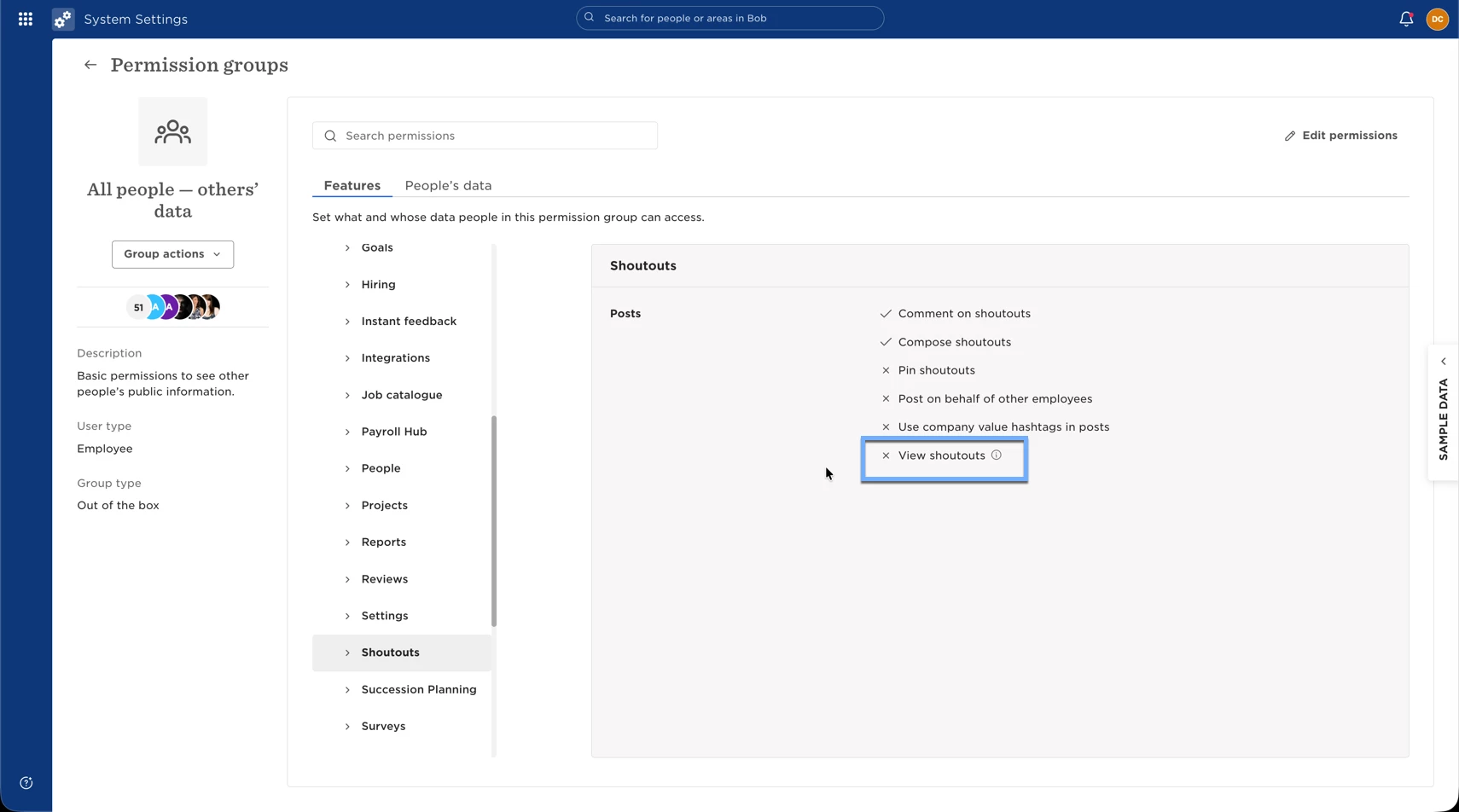
Open All People – Others Data.
Navigate to Features > Shoutouts.
Remove the permission to view shoutouts.
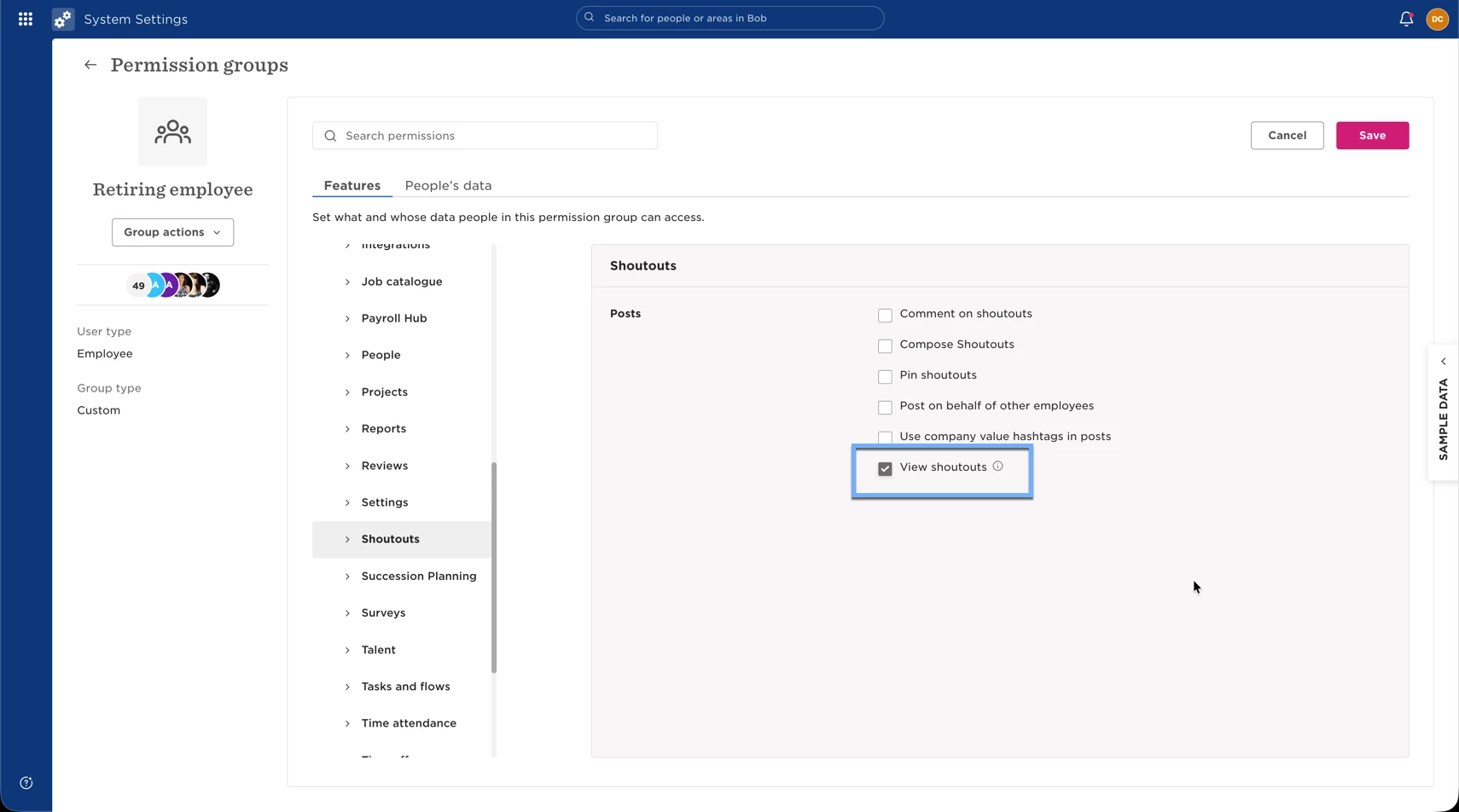
Next, create a new permission group:
Click Create new permission group.
Select Employee type.
Name the permission group.
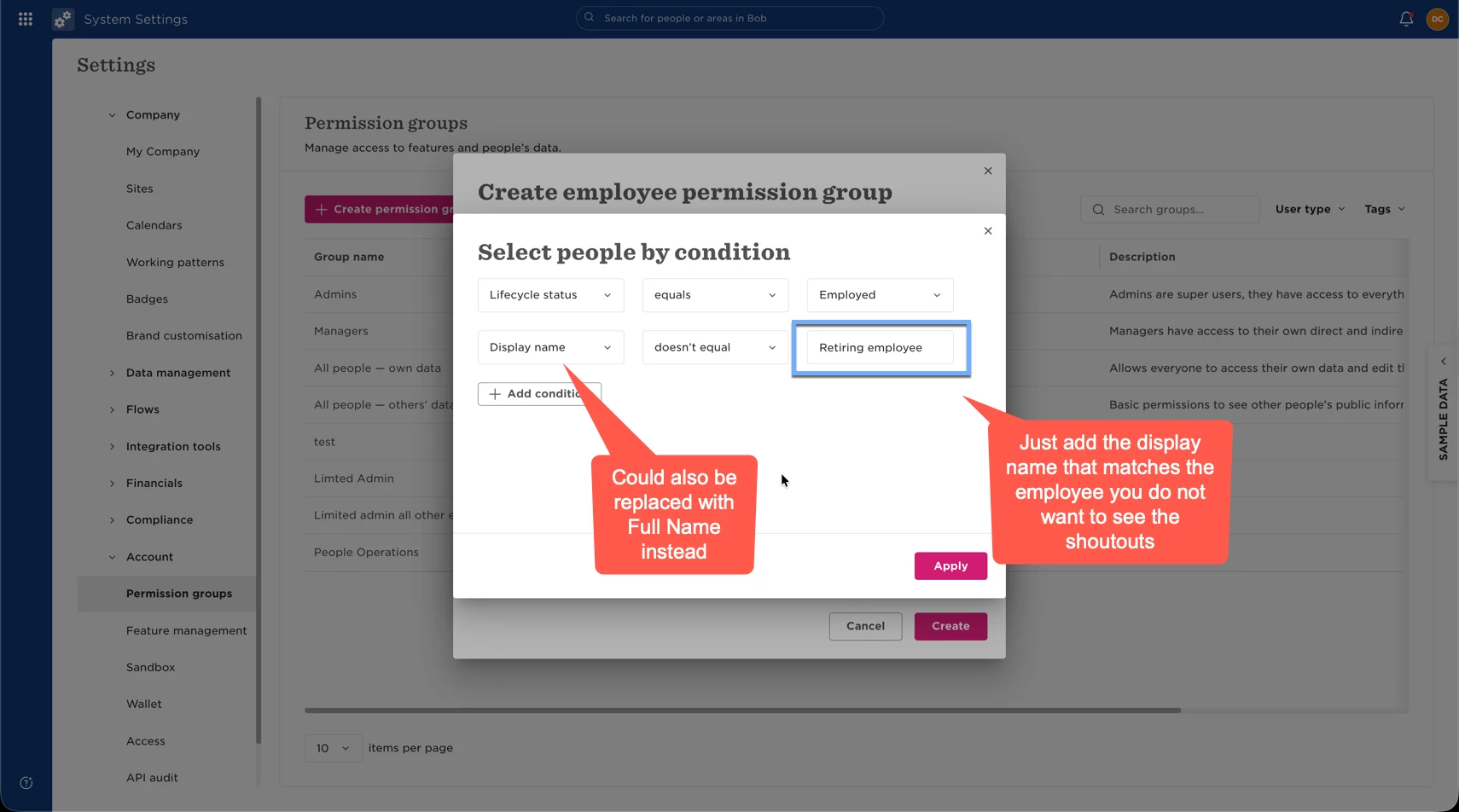
Under People by condition, configure:
Lifecycle = Employed
Display name (or Full name) ≠ the employee who is retiring
Under Features > Shoutouts, grant permission to view shoutouts.
Save the permission group.
Option 2: Create a Custom Group and Target the Shoutout (Easiest)
Create a group that includes all employees except the retiring employee, then use that group as the audience for the shoutout.
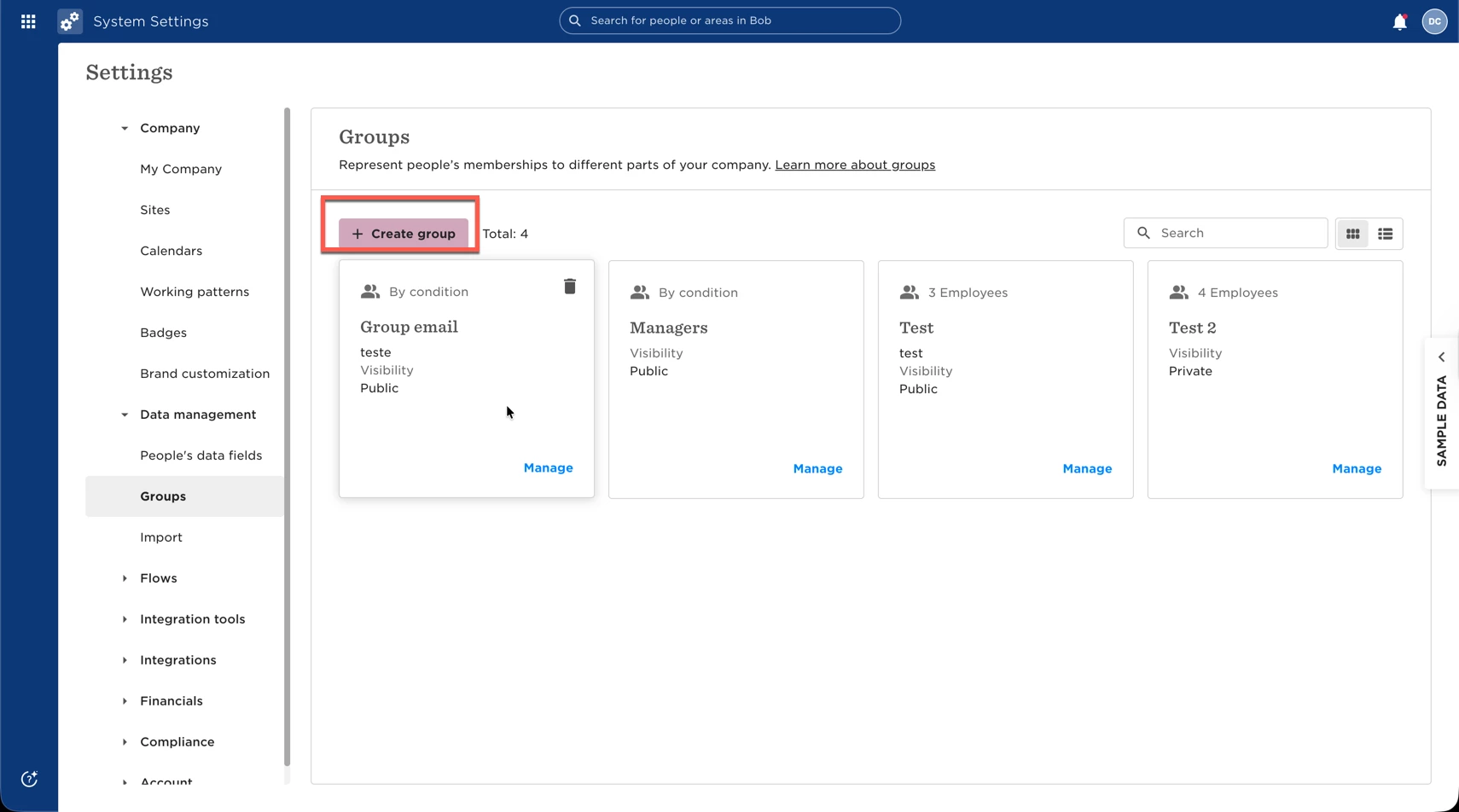
Go to System Settings > Data Management > Groups.
Click Create group.
Give the group a name, such as Retirement Messages.
Set conditions to include all active employees except the retiring employee:
Lifecycle status = Employed
Display name (or Full name) ≠ the employee who is retiring
Set the group's visibility to Public.
Save the group.
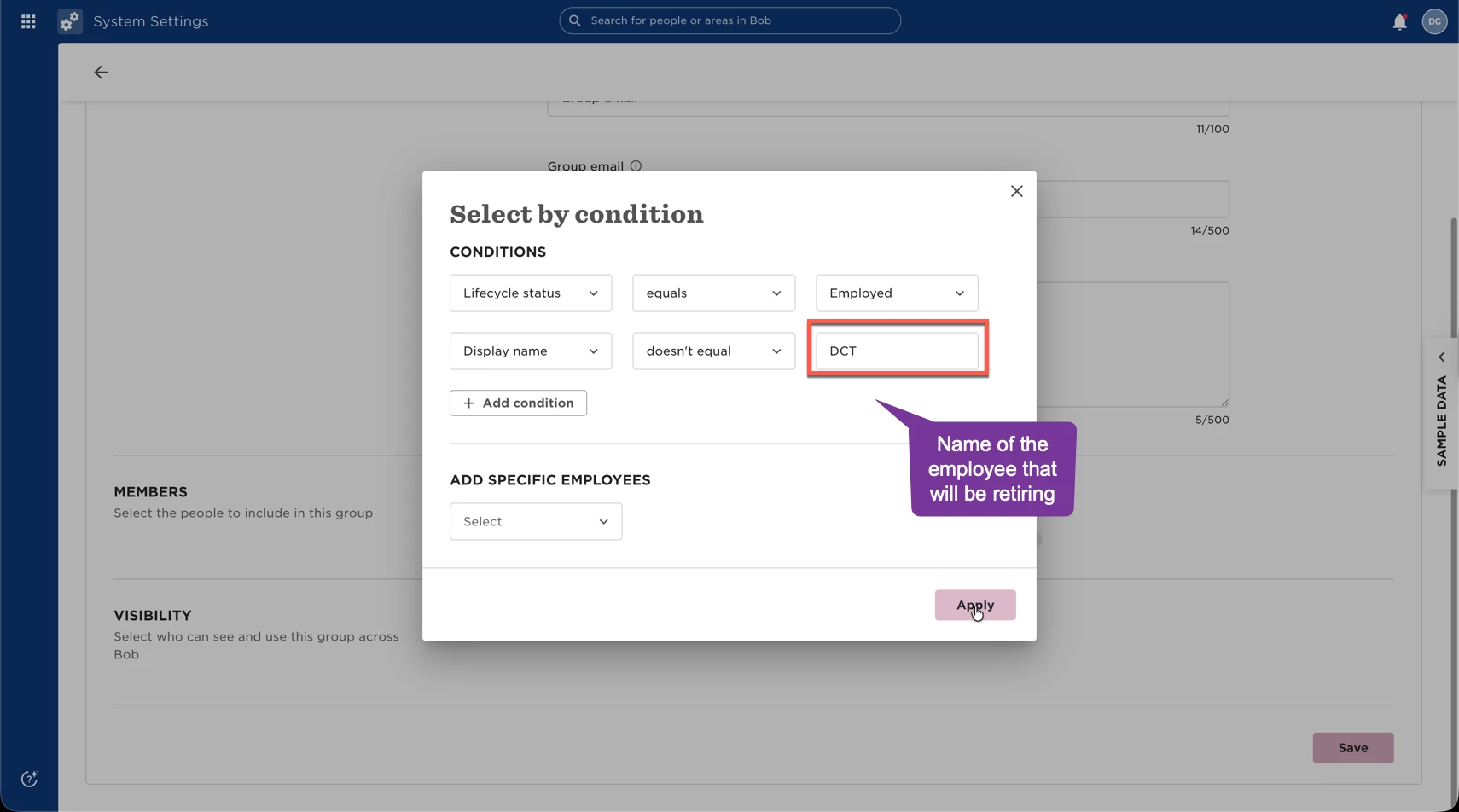
Once the group has been created:
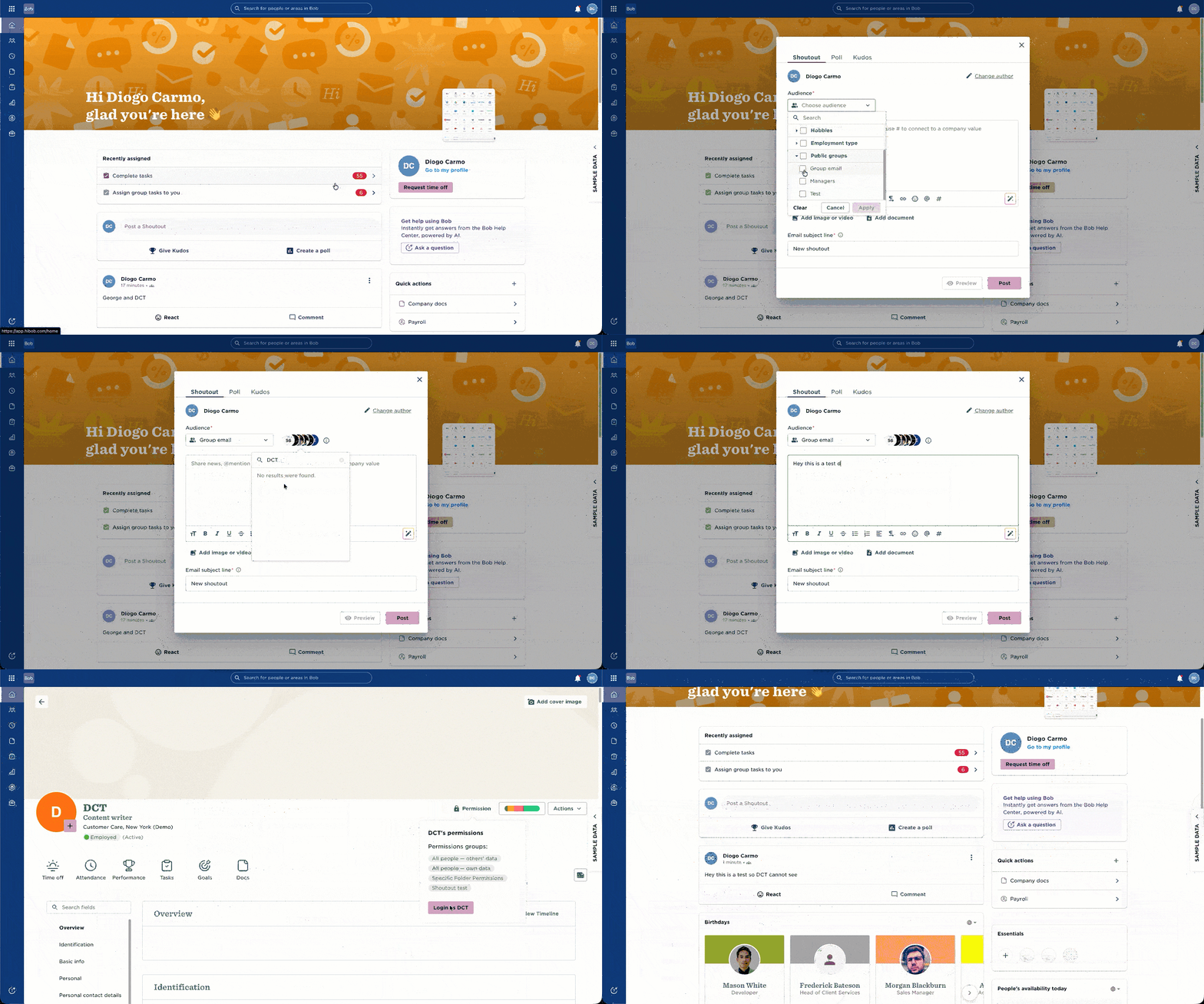
Go to your Homepage.
Create a new Shoutout.
Select the new group as the audience.
Publish the shoutout.
Here is the end result and validation:
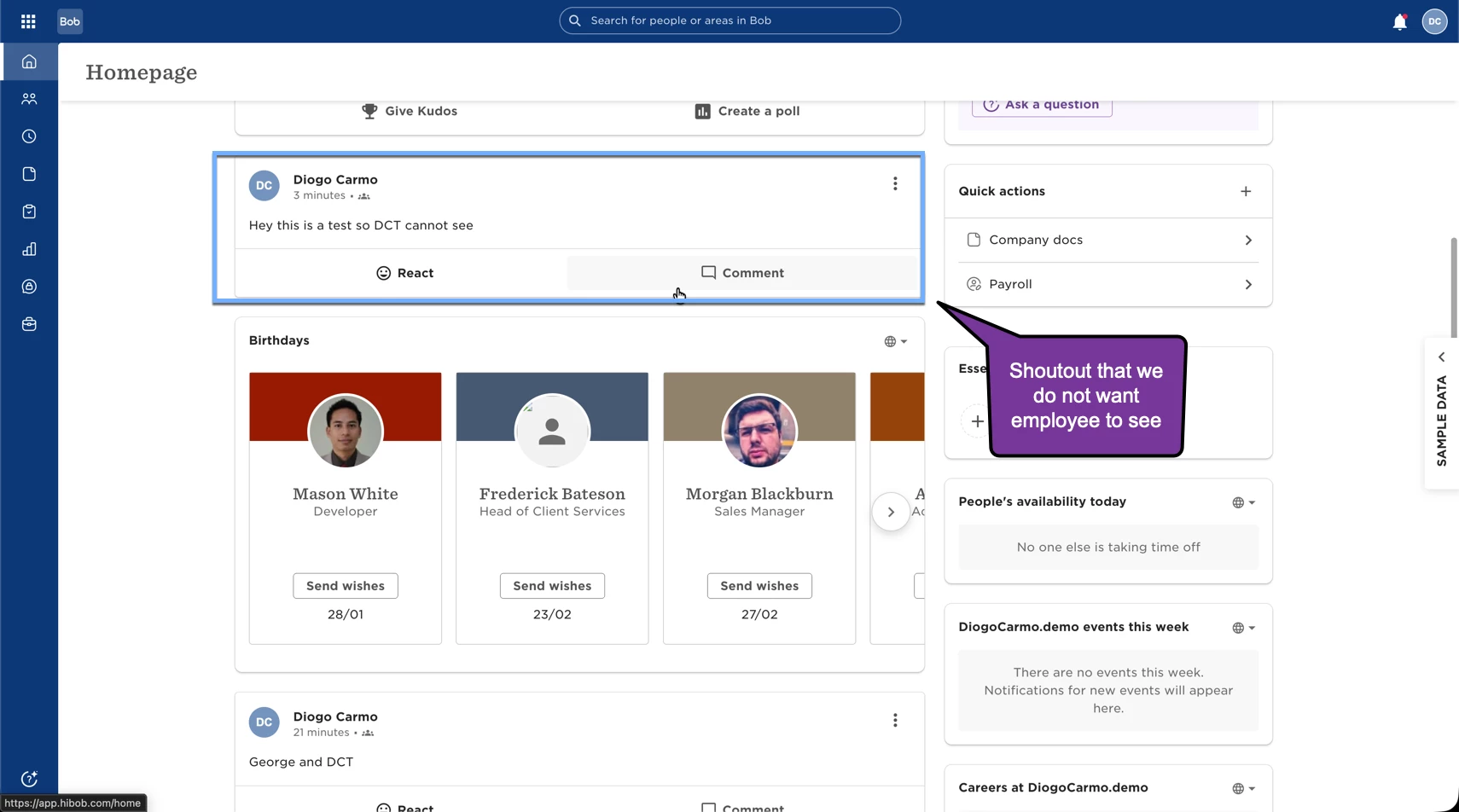
From everyone else's perspective:
From the perspective of who cannot see the shoutout:
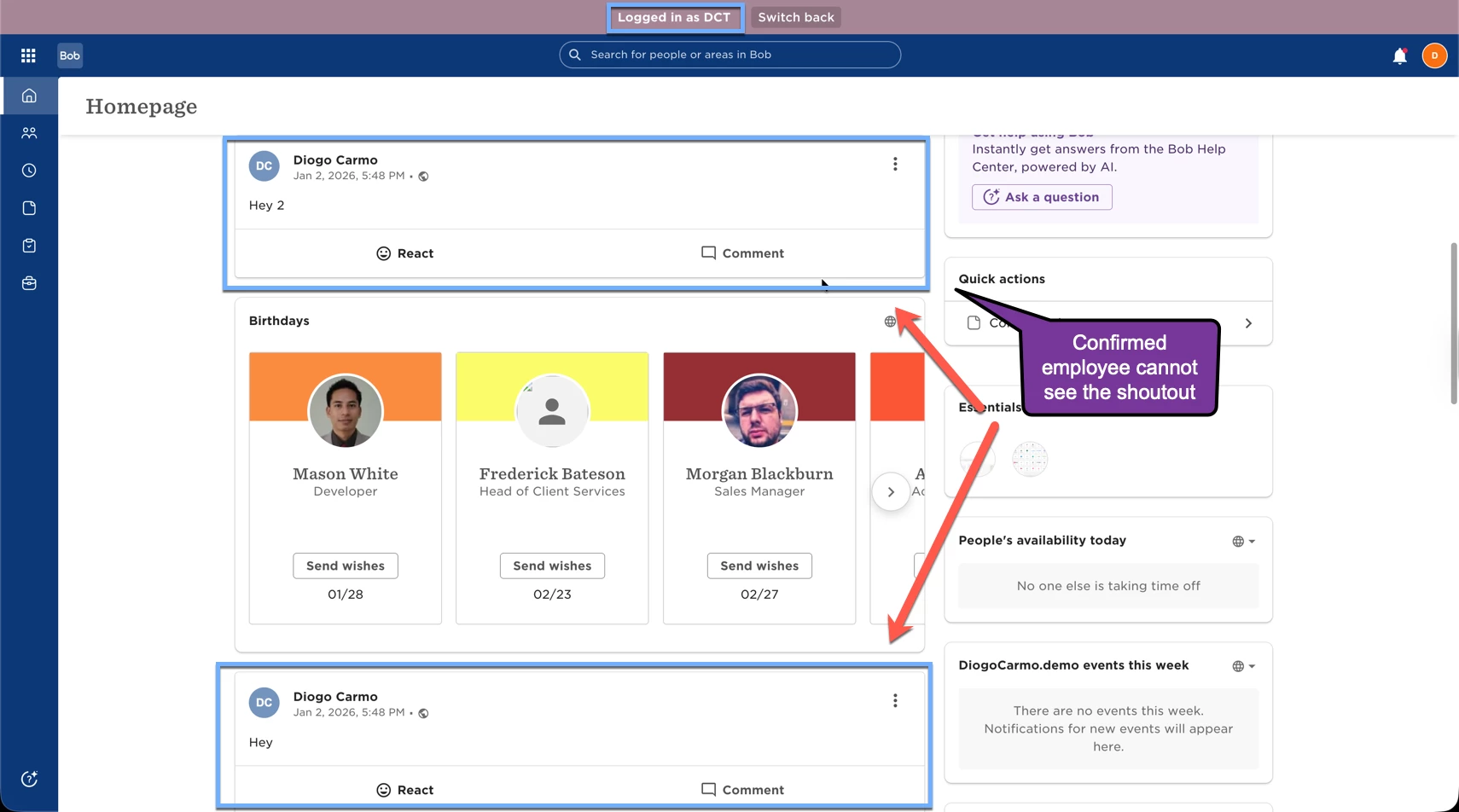
Because the employee is not a member of the group, they won't see shoutouts posted to it. However, since the group is public, they can still see that the group exists.
Important: Test this setup with a small group before using it for a live retirement announcement.
Both approaches ensure all employees can continue viewing shoutouts except for the one employee.