

When auditing a field or task in the platform, admins rely on time stamps to troubleshoot and resolve issues. However, managing an international team operating across multiple time zones can complicate how time stamps are displayed. This is especially true when admins need to log in as an employee (impersonate) to view the system from their perspective, as time stamps may adjust to reflect the employee’s time zone.
It’s crucial to understand that not all audits and reports display time stamps in the same time zone. Below is a breakdown of how time zones are managed across different platform areas.
Employee Audit Trail
- Time Zone Logic: Time stamps in the Employee Audit Trail are displayed in the viewer's personal time zone, even when logged in as another user.
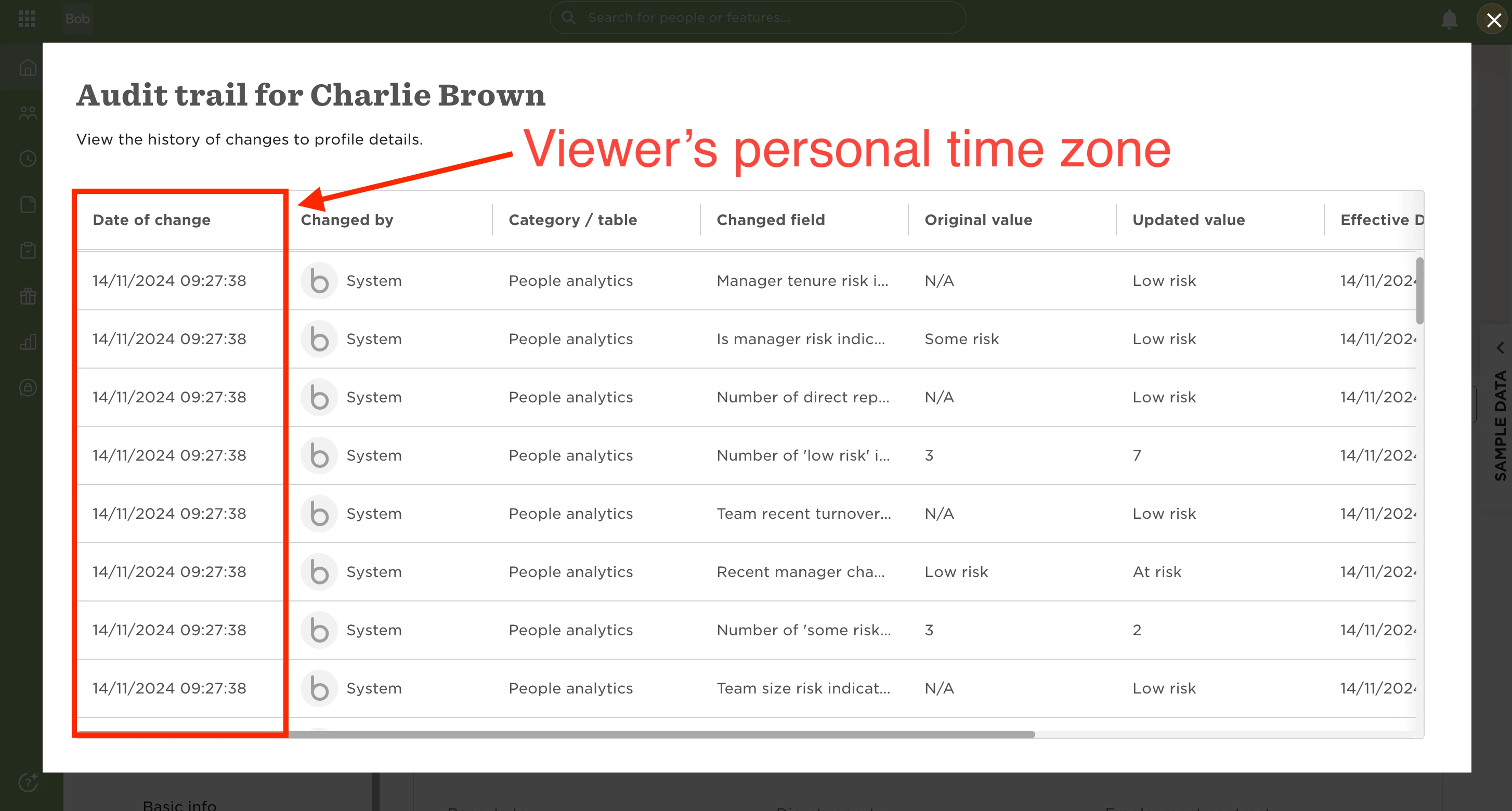
Example:
An admin in New York (GMT-5) is logged in as a manager in London (GMT+0) and views the Employee Audit Trail for one of their reports. The time stamps displayed will reflect New York time (GMT-5), not London time (GMT+0), because the admin is located in New York.
Manage Tasks
- Time Zone Logic: Time stamps in the Manage Tasks section reflect the time zone of the user logged in as.
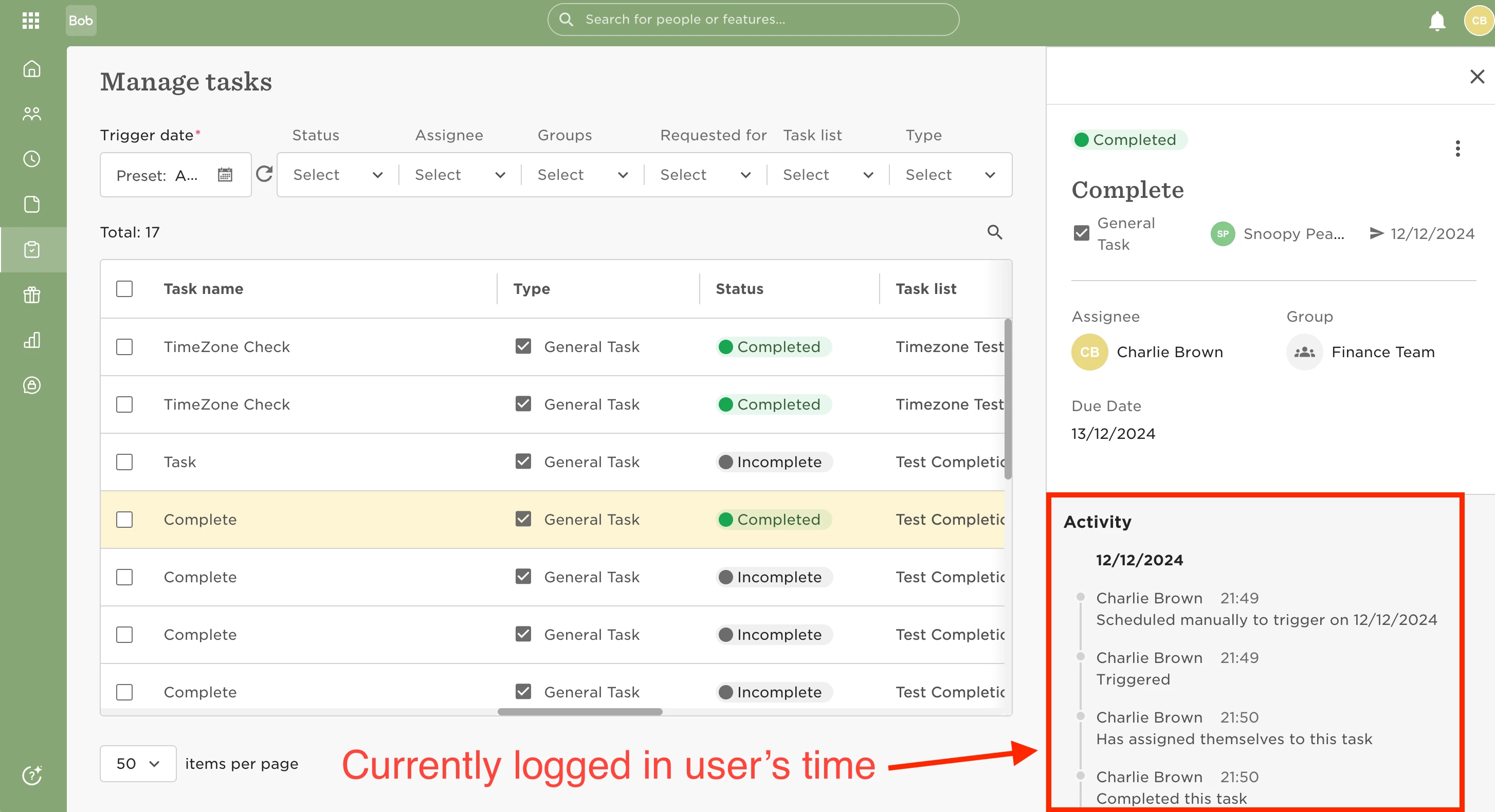
Example:
An admin in New York (GMT-5) is logged in as a manager in London (GMT+0) and checks the time a task was triggered in the Manage Tasks report. The time stamps will be displayed in London time (GMT+0). To understand the timeline, the admin must convert these to New York time (GMT-5).
Understanding these nuances in time zone interactions helps admins interpret data accurately, ensuring smooth troubleshooting and resolution of cross-time-zone issues.