

Hiding an employee from the org chart.

  • March 31, 2023
  • 3 replies
  • 820 views

Fernando Silva
Bobber

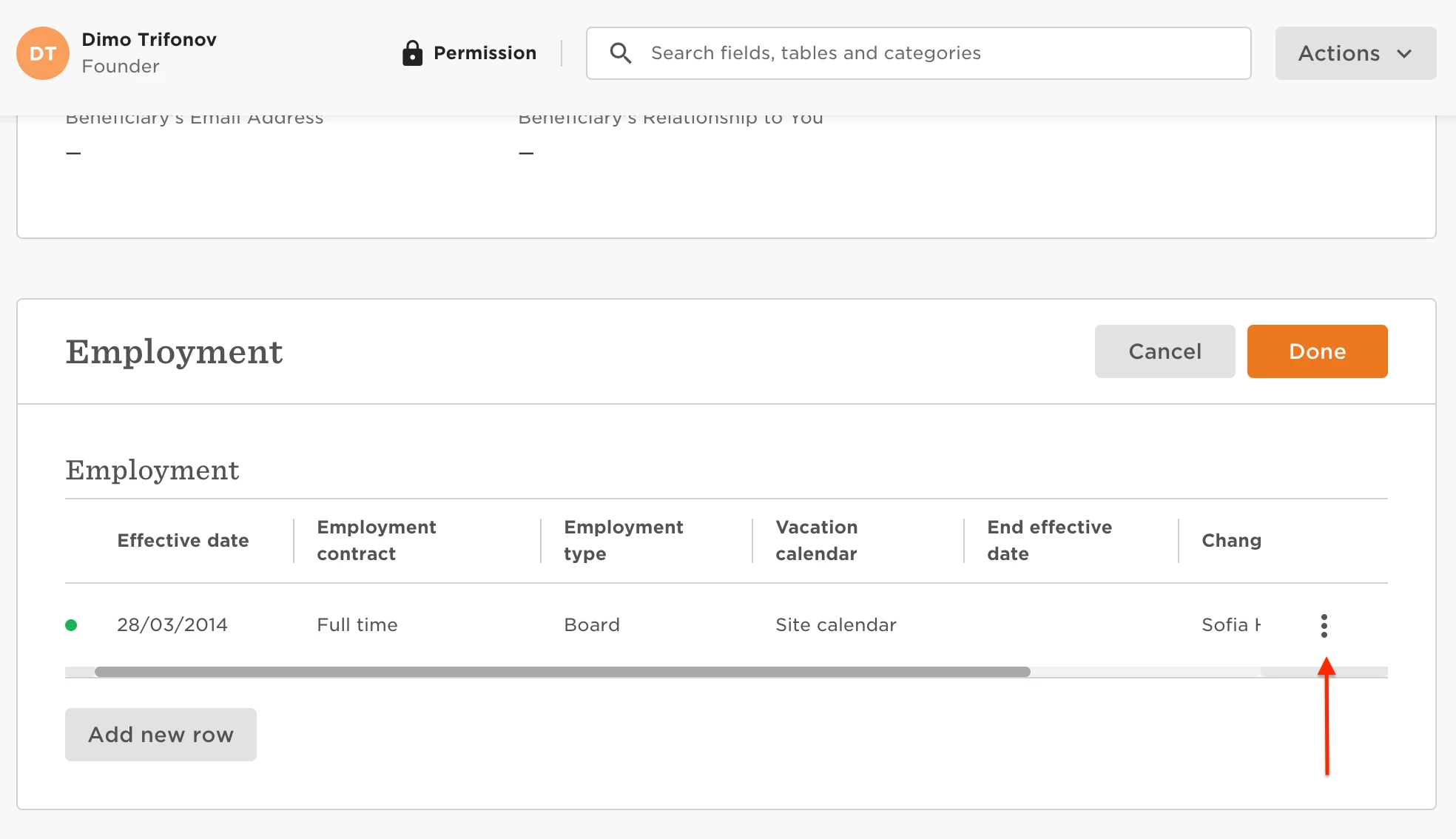
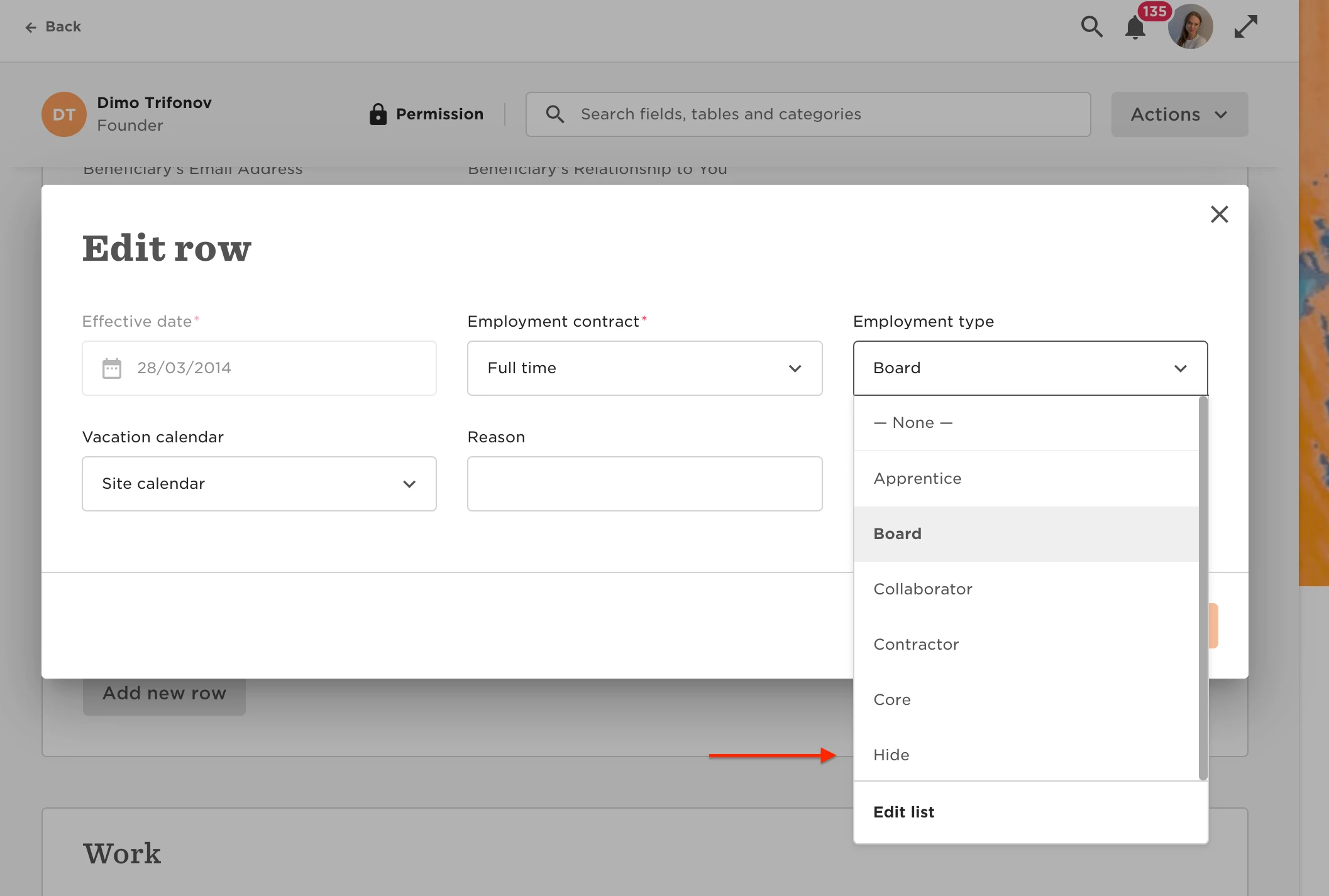
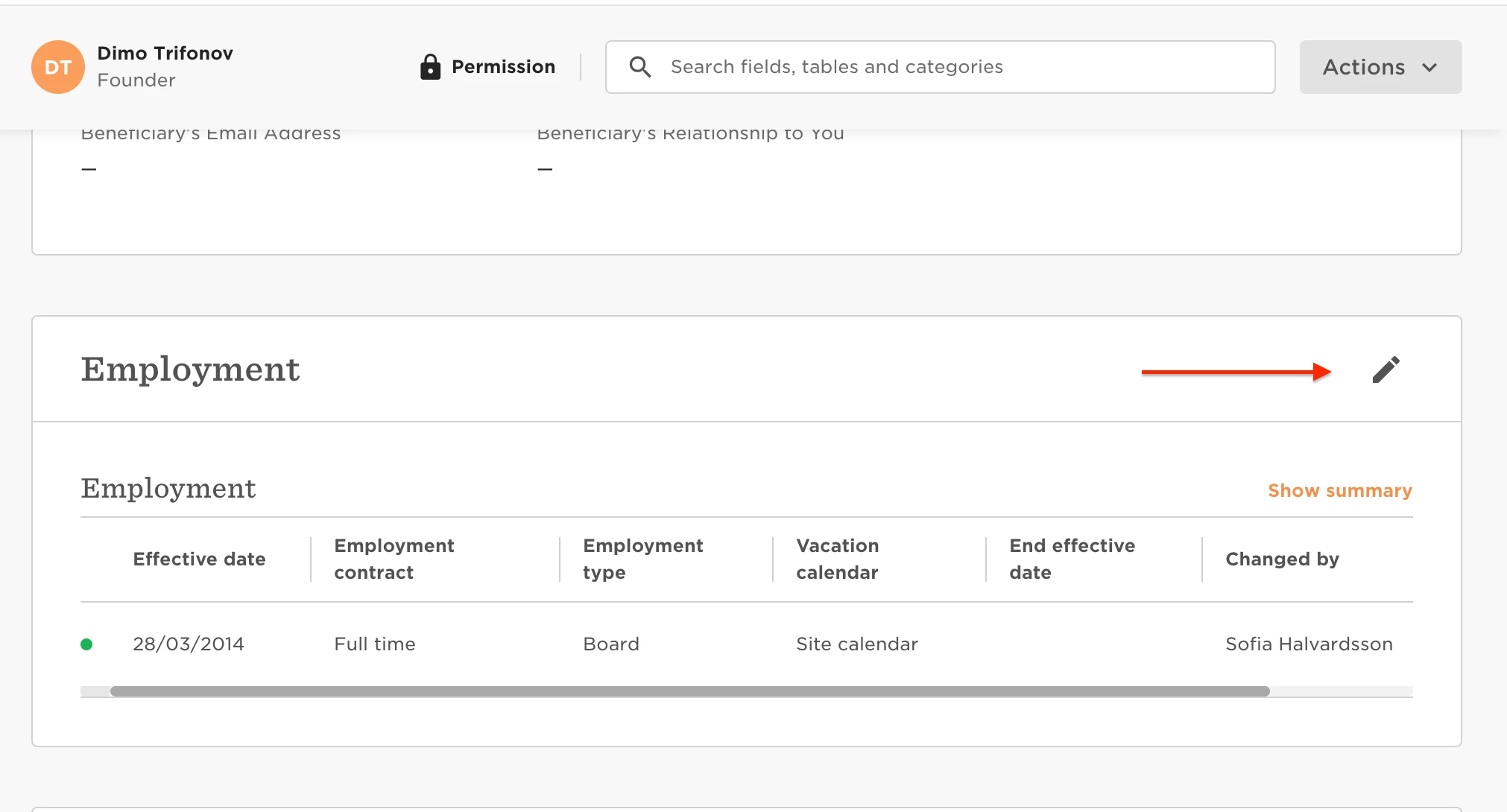
A workaround for this is to create a custom Employment type for the employee and edit the apply to section on All employees roles and permission to apply to all employment types but the new value.

Note, for no one else to not see this account, this account needs to be marked as not reporting to anyone.


3 replies

Thanks @Fernando Silva ! I tried to do this for the ‘All people - other peoples’ data’ permission group, but it did not work. Managers are still able to see this employee in the org chart.

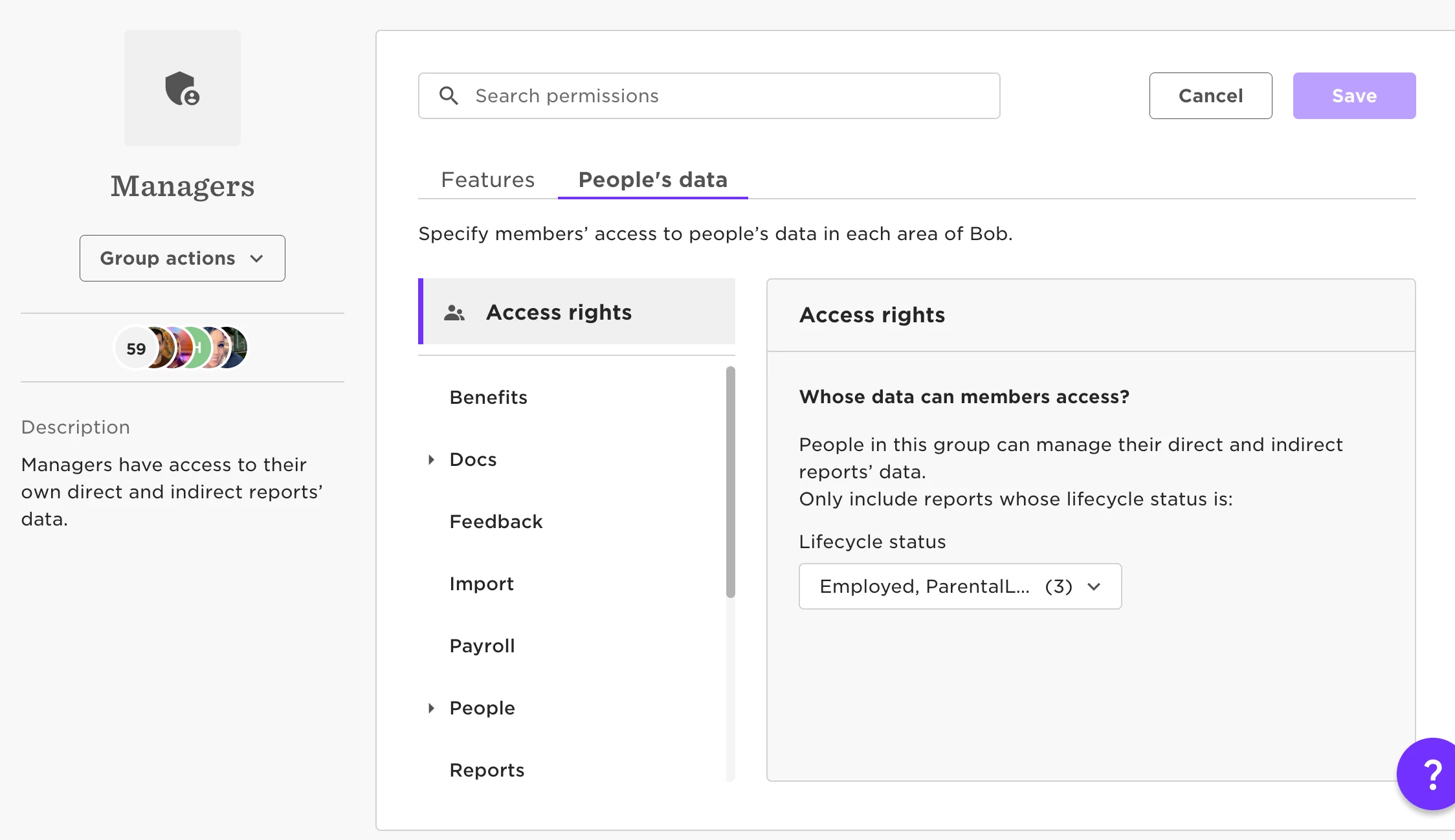
Unfortunately, I’m not able to apply access rights beyond the Lifecycle status filter for the ‘Managers’ permission group (see screenshot). Do you have any suggestions?


Hey, @Sam Helferich.

Have you managed to find an answer to this yet, please? Sorry that this got missed at the time. Happy to help if I can!


Hi ​@Sam Helferich I’m new to HiBob and just saw this as I had a similar use case. I have the following suggestion - I’ve tested it but not implemented it yet. Please review and share your thoughts.
 

Is there at least one lifecycle status that managers are allowed to view, and that employees you want to hide from the org chart will never be in? For example, Terminated. If it's acceptable for managers to view terminated employee data; note that terminated employees are not selected by default in the org chart.

If such a lifecycle status exists, you can set this in the standard manager permission group.

Next, create a custom manager permission group (note: you can’t duplicate the standard one, but you can build a similar version). In this custom group, include the relevant lifecycle statuses and apply additional conditions.

You can use either:

  • Employment records (as explained earlier),

  • Job History (where job title and org levels are stored), or

  • A custom standalone category field outside these tables.

Using Job History or Employment records has the advantage of supporting time-bound visibility — e.g., hiding employees between a Start and End Date, after which the system will automatically unhide them as the old record becomes inactive and new record is active.

That said, I recommend using a custom field within the Employment or Job History record, rather than repurposing the Employment Type field. Using Employment Type can cause reporting issues, as employment history may no longer appear continuous or give inaccurate data when the value is set as hidden. For example:

  • Fixed Term: 1 Jan – 30 Jun

  • Hidden: 1 Jul – 31 Jul (employee is still technically Fixed Term)

  • Permanent: from 1 Aug onward

Instead, if you create a custom field inside the Employment record, you can split it like this:

  • Fixed Term: 1 Jan – 30 Jun

  • Fixed Term (with "Hide Employee?" = TRUE): 1 Jul – 31 Jul

  • Permanent: from 1 Aug onward

This preserves the integrity of the employment timeline and avoids disrupting employment type data.

If you create a custom field outside Employment or Job History, you’ll need to manage it manually — toggling it on to hide, and off to unhide.

If you're using a custom field — whether inside Employment / Job History or as a standalone — such as "Hide Employee?", your condition might be:
Manager custom permission group has access to employees with lifecycle statuses (excluding Terminated) and where "Hide Employee?" is not TRUE.

Ultimately, the approach depends on your use case and how you want to manage it (time bound or manual).
If there are few cases then manual might be better. For example, if there is an occasional new joiner who is a confidential hire and needs to be hidden initially, you can use this field to hide the profile and then schedule a task for HR Operations to unhide on their Start Date. You can use task auto-scheduling and conditions to automate the task/ reminder.