

If an employee was mistakenly terminated and rehired, their Lifecycle table may reflect an incorrect start date. To fix this, you’ll need to delete entries in reverse chronological order—starting from the most recent.
This is the correct process to use for any corrections in the Lifecycle table, including cases where:
-
A wrong Effective date was used for termination
-
A status change was added by mistake
-
You need to restore the original start date
Once the incorrect entries are removed, you can re-run the relevant flow, like Termination, using the correct information.
How to delete Lifecycle entries (e.g., Termination)
-
Go to the employee’s Profile > Lifecycle
-
Click the Edit pencil icon
-
Open the three-dot menu (⋮) next to the topmost entry
-
Select Delete
-
Repeat for each entry above the incorrect Termination row
-
Finally, delete the Termination row itself
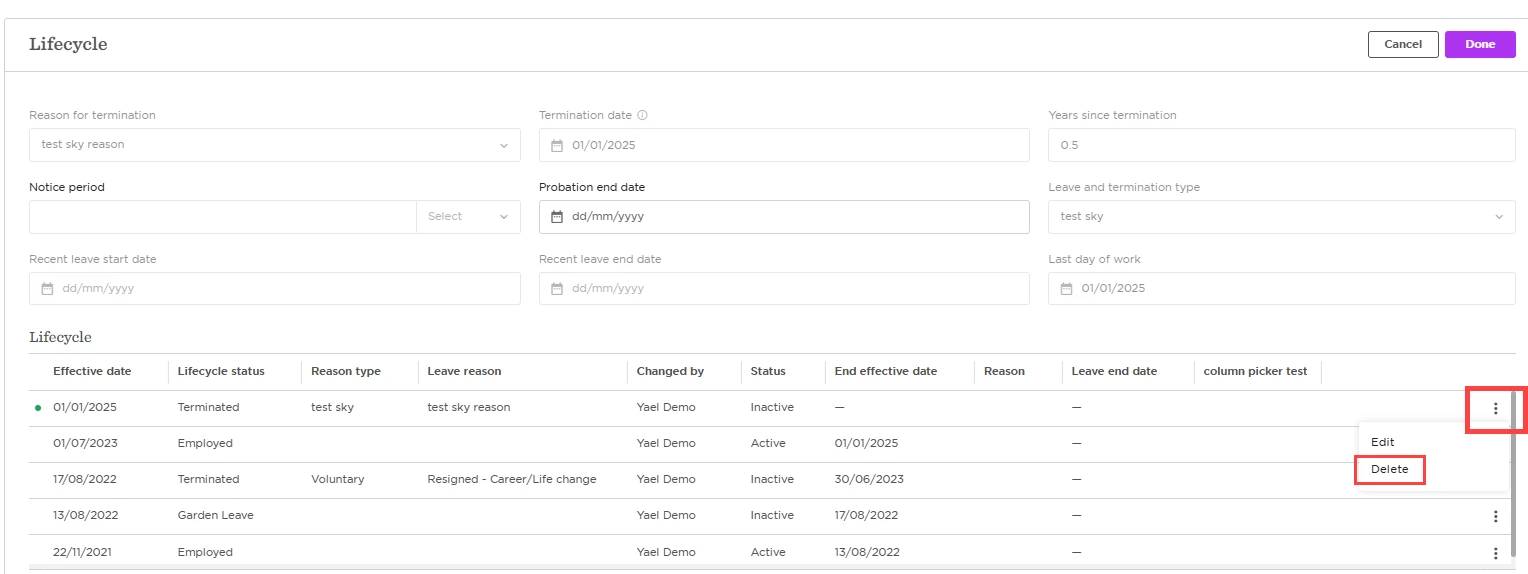
Check that the earliest remaining entry reflects the correct start date.
⚠️ Important: Always delete Lifecycle entries from top to bottom to maintain the correct sequence and avoid data issues.