

You can control who appears in employee reference fields, such as Reports to, making it possible to assign a future hire as a manager or leave the manager field blank, so an employee appears at the top of your organizational chart.
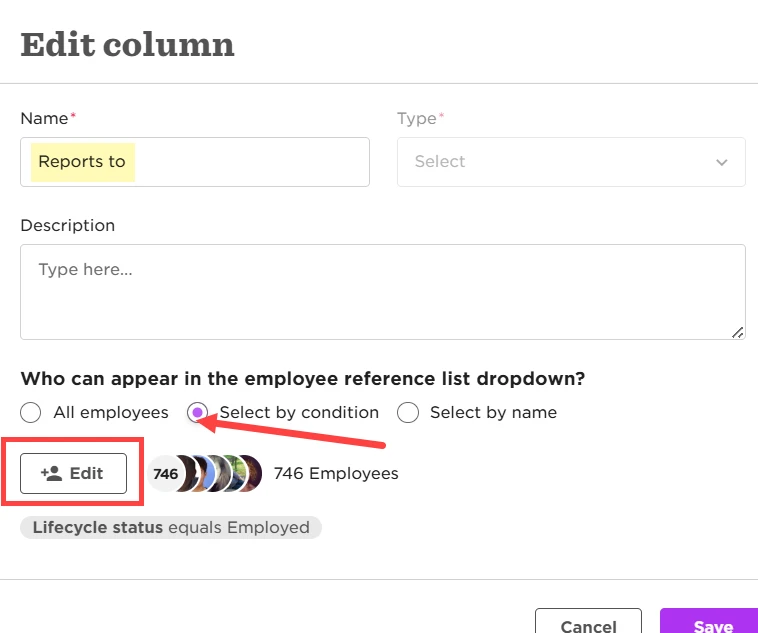
Assigning a future hire as a manager is done through the Reports to field settings. This field allows you to limit which employees appear in the dropdown using a condition. To include future managers who haven’t started yet, simply add the Hired lifecycle status to the condition so they can be selected.
To update this:
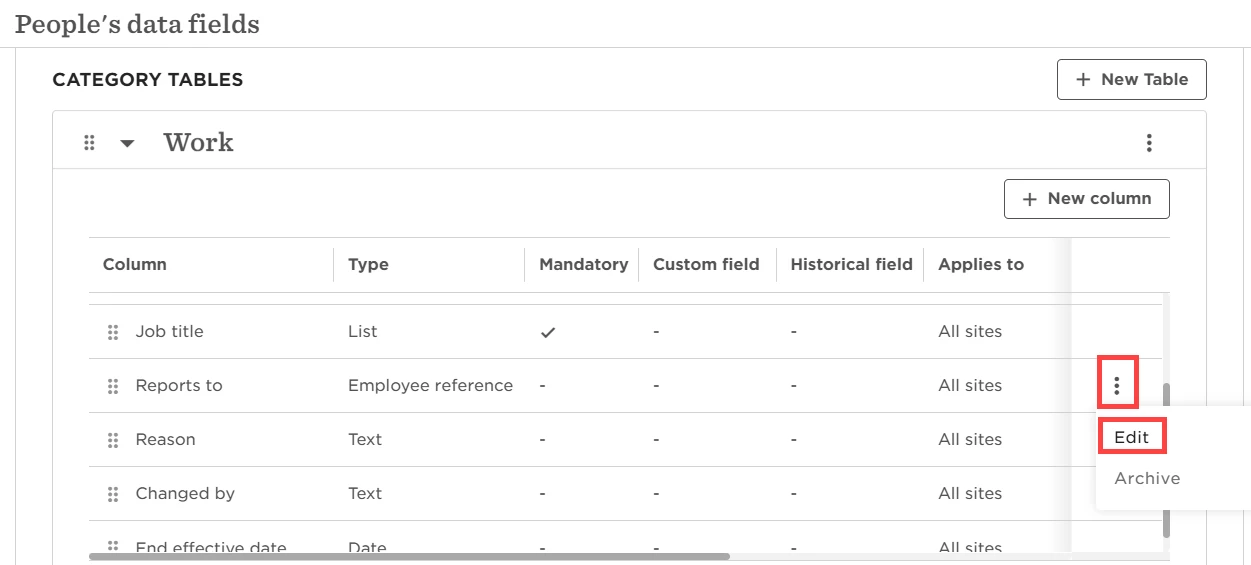
• Go to Settings > Data Management > People’s Data Fields
• Open the Work table and find Reports to
• Select the 3-dot menu → Edit
• Turn on Select by condition
• Add the Hired lifecycle status alongside Employed
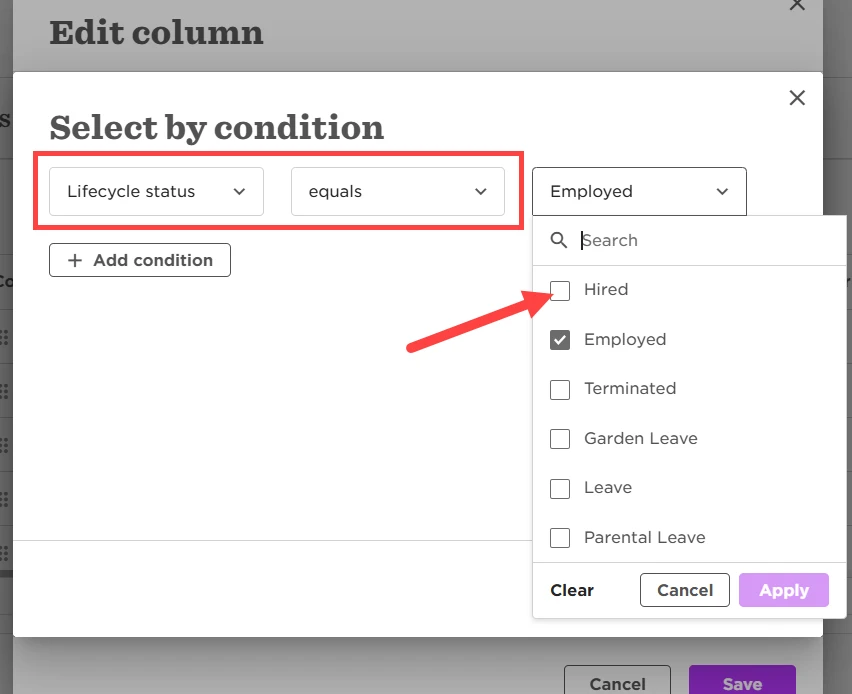
Once this is set, any future employees with the status 'Hired' will appear in the Reports to dropdown and can be assigned as managers ahead of their start date.
If you want an employee to appear at the top of your Org chart with no manager, you can clear their value in Reports to. Any employee with a blank manager field automatically appears in the top row.
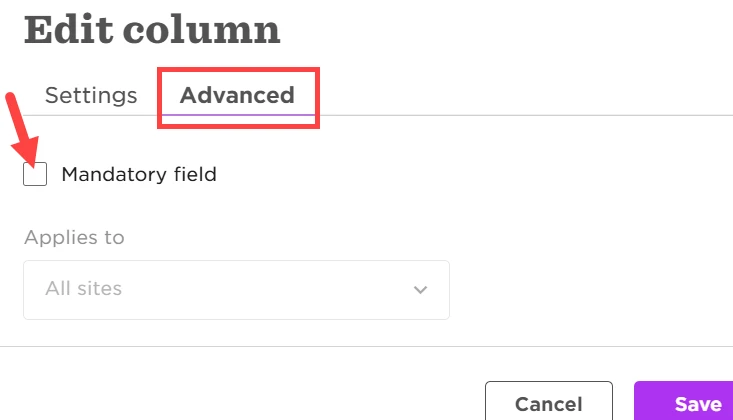
To do this, first make the field non-mandatory:
• In the field’s Advanced tab, remove the checkmark from Mandatory
Then update the employee’s profile:
• Click into the Reports to dropdown
• Choose Clear at the bottom → Save
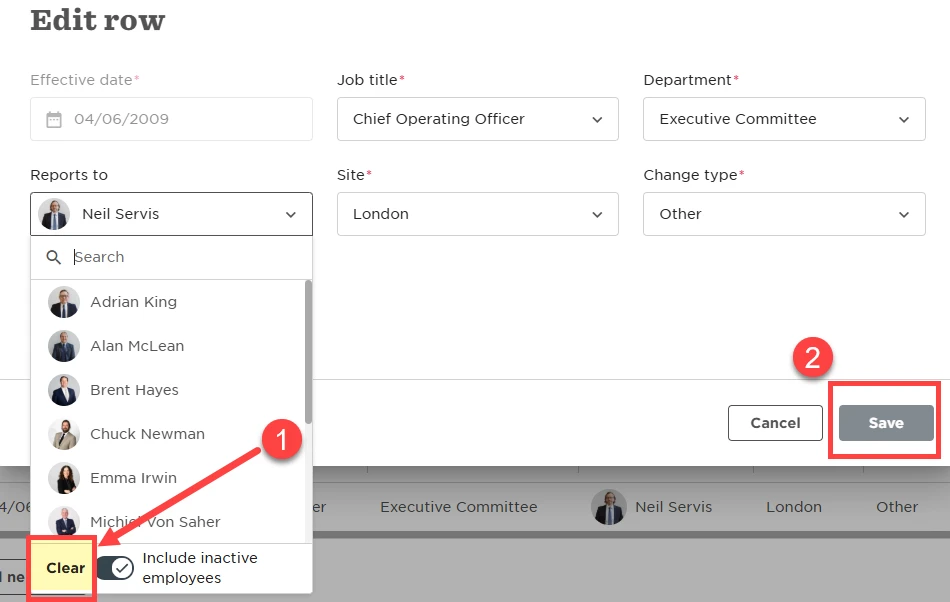
Tip: Clear the field directly from the table row, not from the Actions menu.
After updating the reporting structure, you can set the field back to mandatory if needed.
Employees without a manager will all appear at the top of the Org chart.
You can clear any employee reference field in the same way:
• Open the dropdown
• Select Clear
• Click Save
If the field is mandatory, make it non-mandatory first, clear the value in the profile, and reapply the mandatory setting after saving.