First, you will need to add the new person to the Admin permission group.
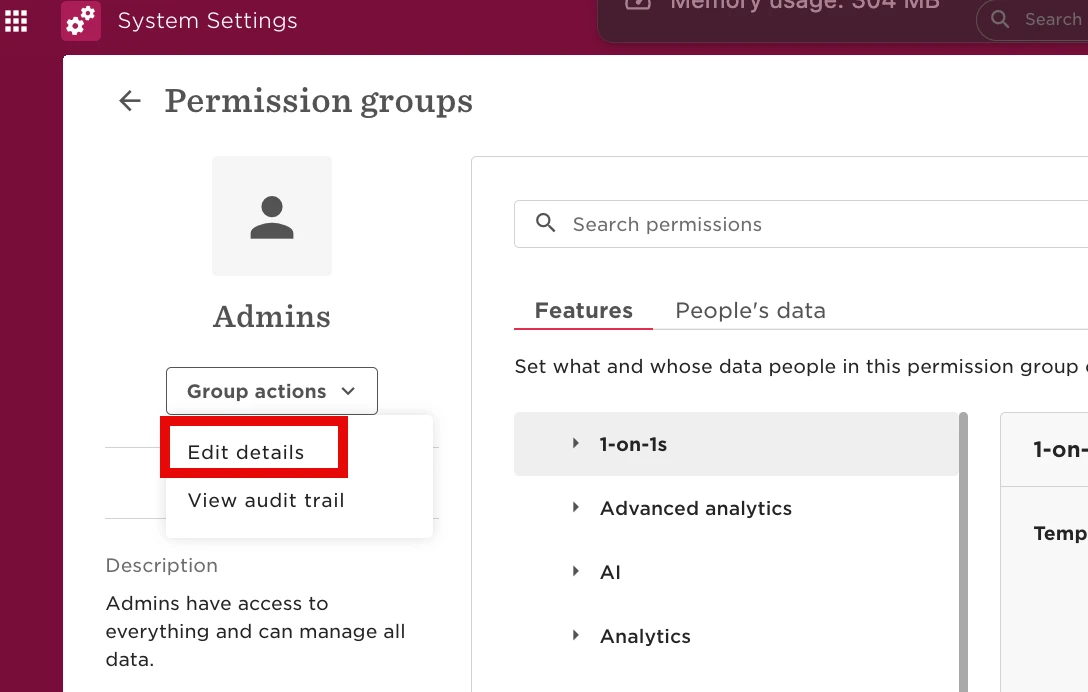
Go to System Settings > Account > Permission Groups > select the Admin permission group > click "Group Actions" and select Edit Details:
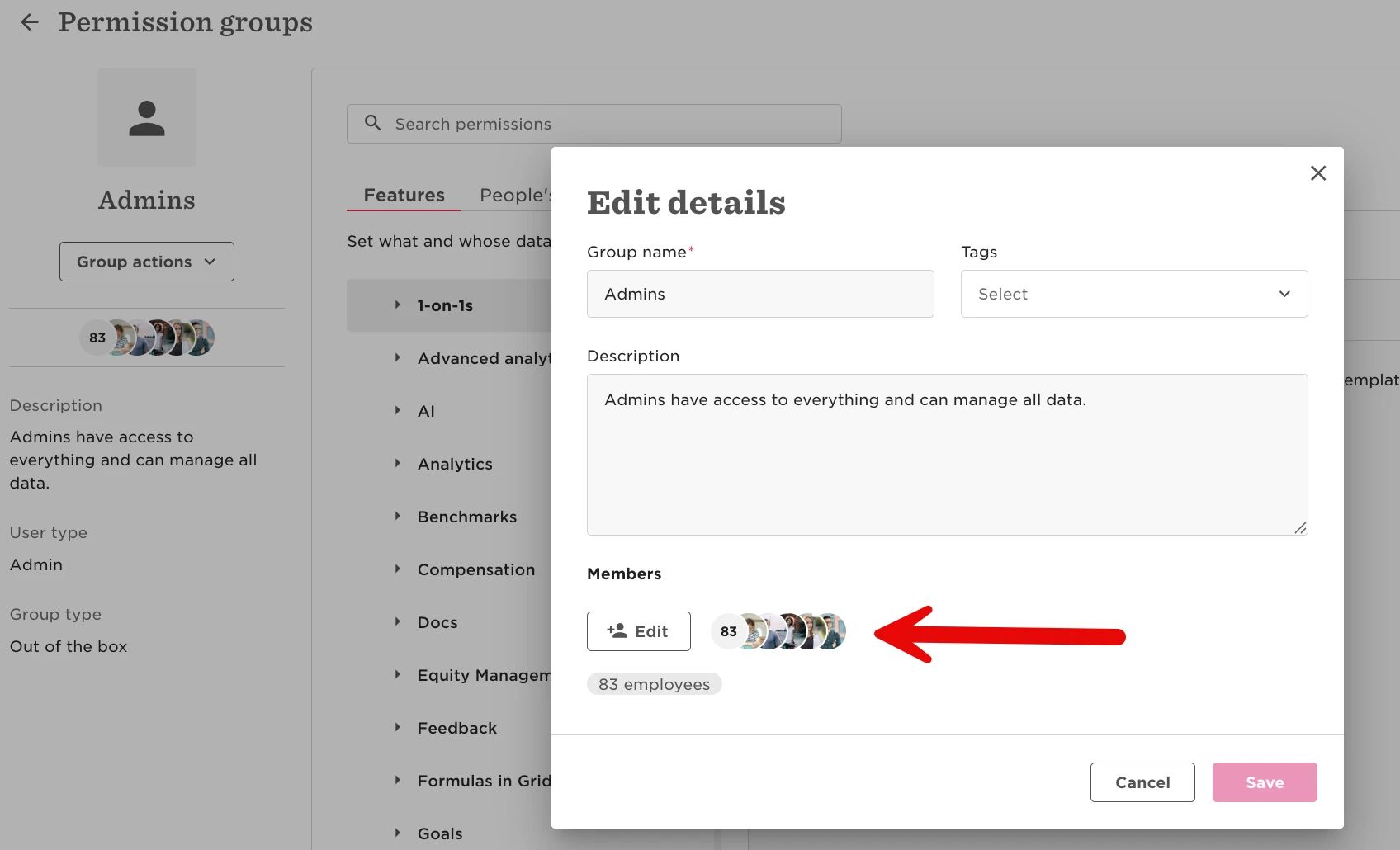
In the Members section, add the new person you would like to have admin access:
Once the new person has admin access, next you will need to manually update all the flows and each of the tasks, anything that the previous admin is the approver/owner of.
Change the Task List ownership
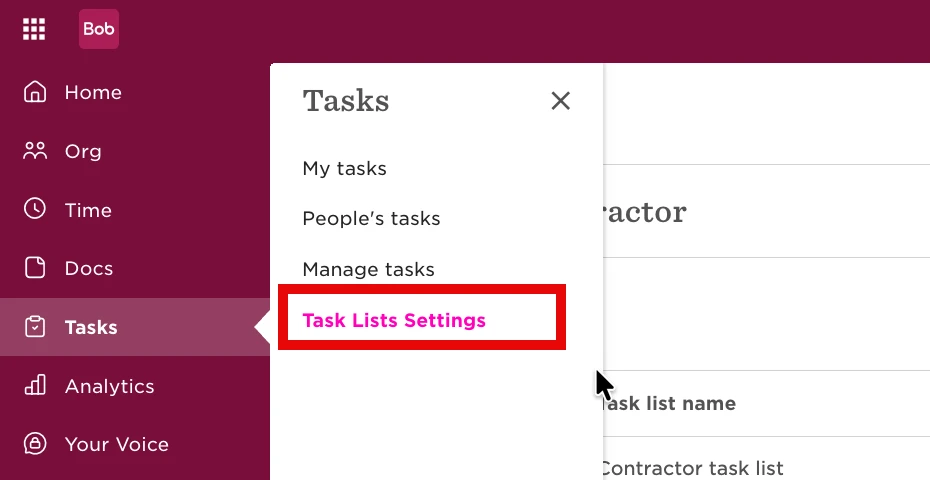
Go to Tasks -> go to the Task List settings:
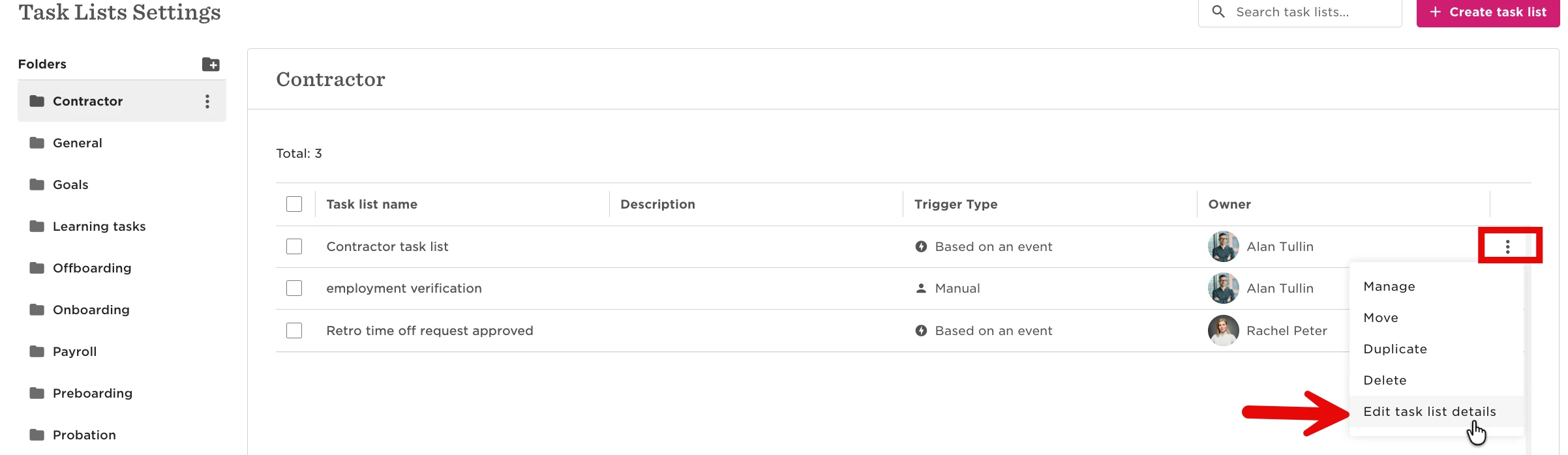
2. For each of the tasks, click on the 3 dots on the right hand side > select "Edit task list details":
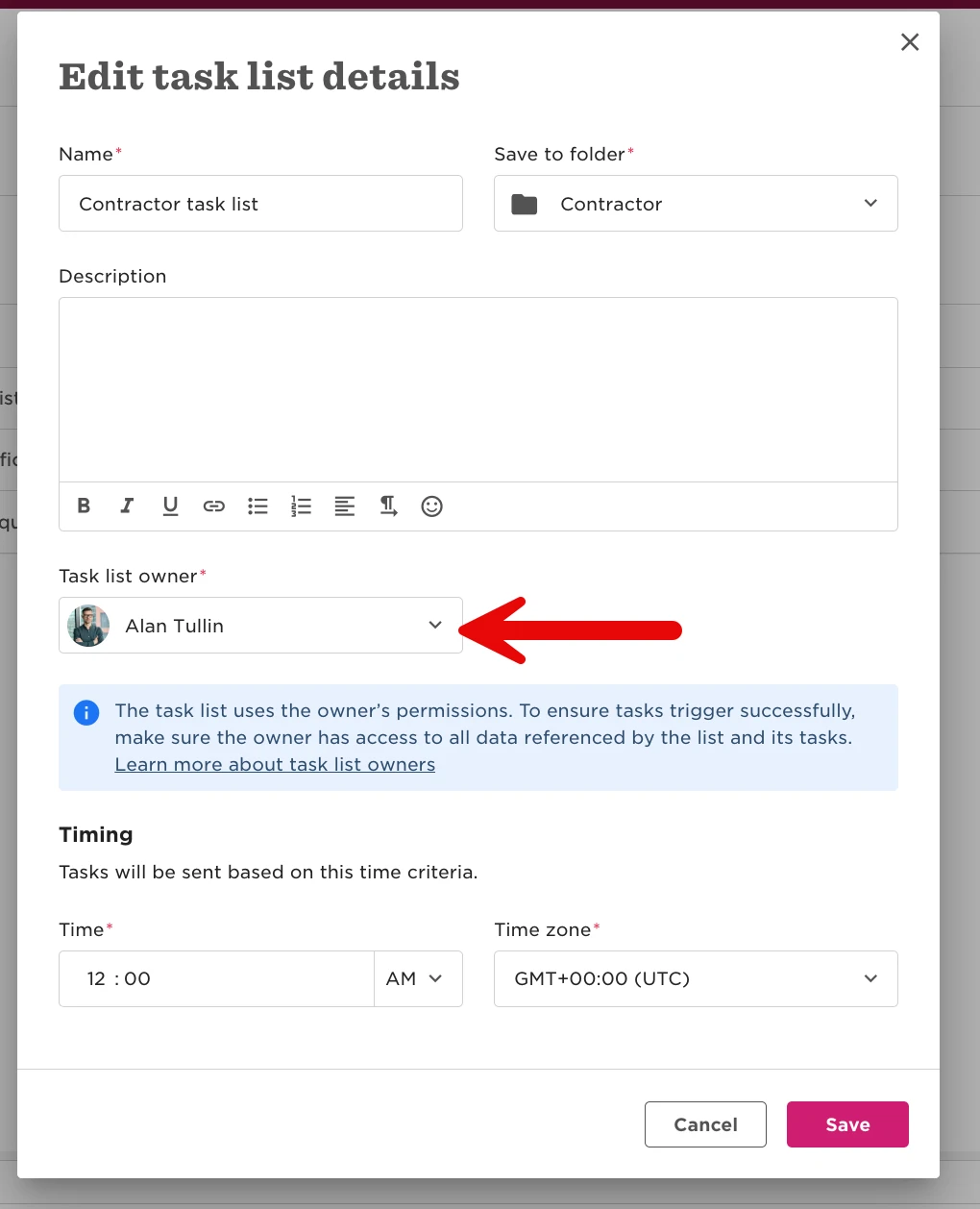
3. Navigate to the task owner section at the bottom of the first window
4. Replace the ownership to the desired admin, if needed (see example image). Click Save once done.
5. Once you have done the above, you will need to click into each of the tasks within each folders to edit the assignee if needed:
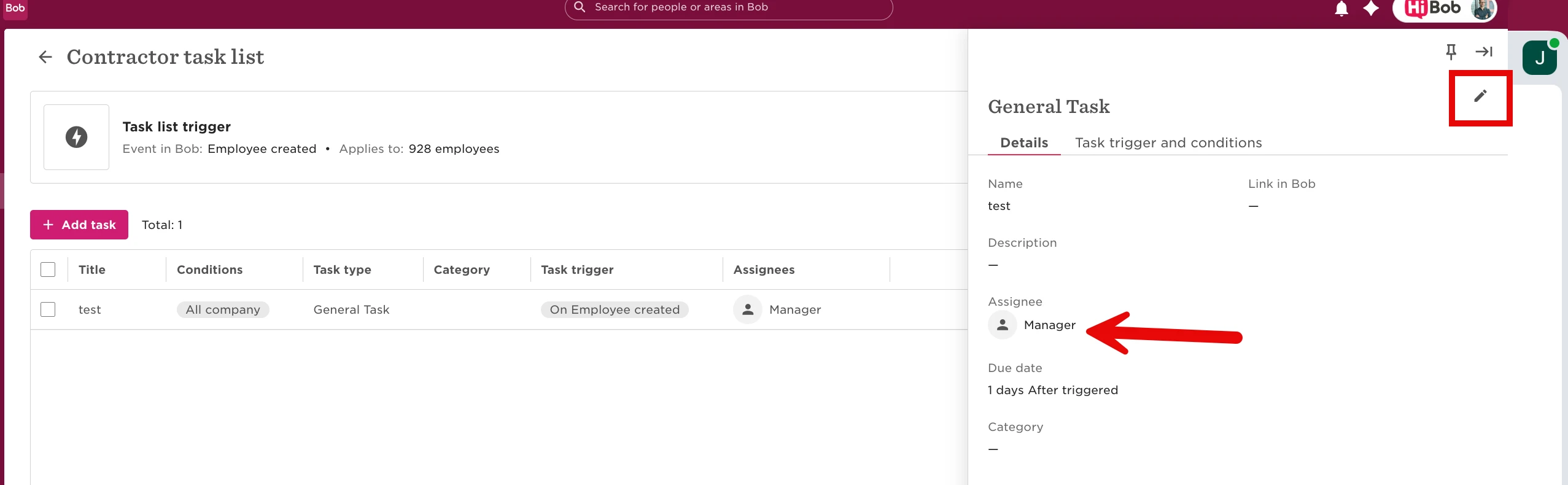
Note: If you have many task lists, there is no bulk update for these settings. You will need to review and update this manually.
Next, you will need to review and update the flow approver settings.
Update Flow Approver Settings
To edit the flows to include the new employee for each flow and change the approver if needed, please see the instructions below:
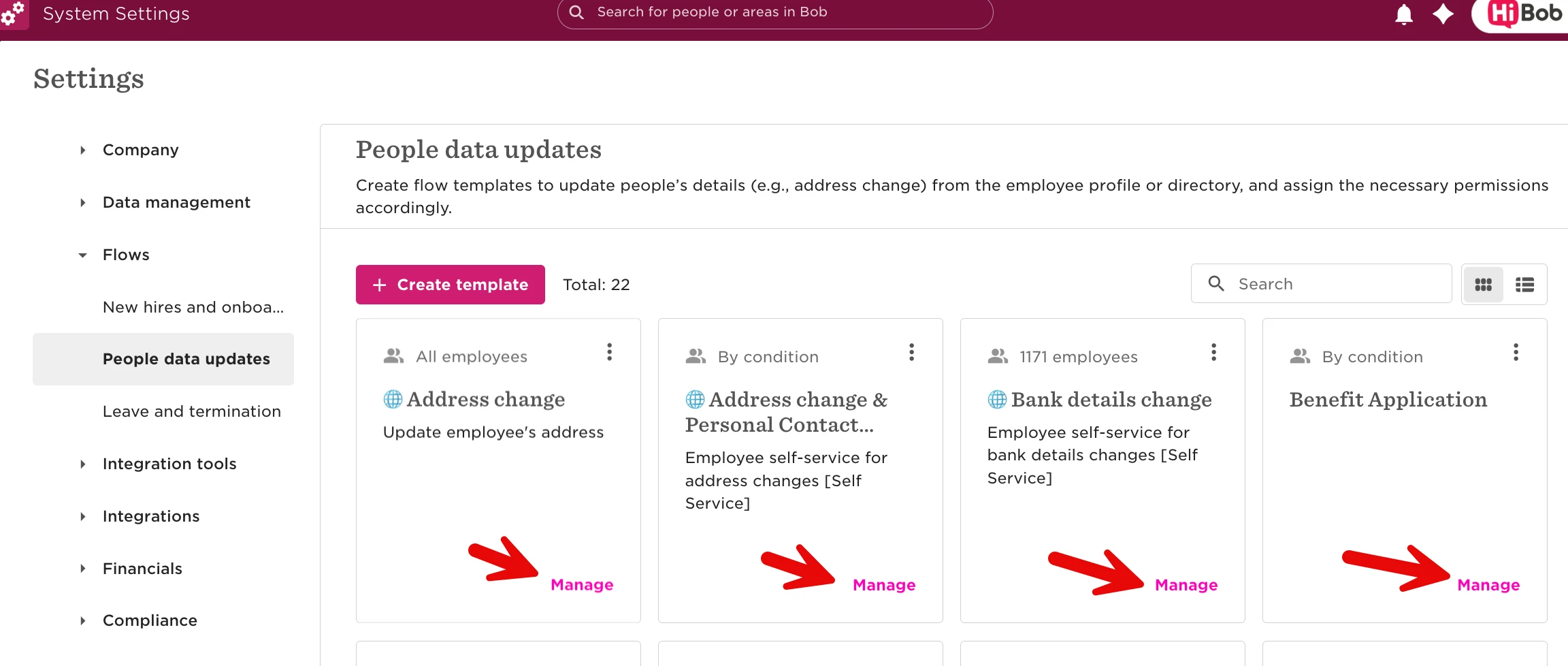
1. Go to the System Settings
2. Under "Flows" > select "People data updates" > then click "manage" for each of the flows in your account. See example image:
4. For each of the flow, check the details section "Applies To" - if the previous admin is there, then ensure the new admin is also included:
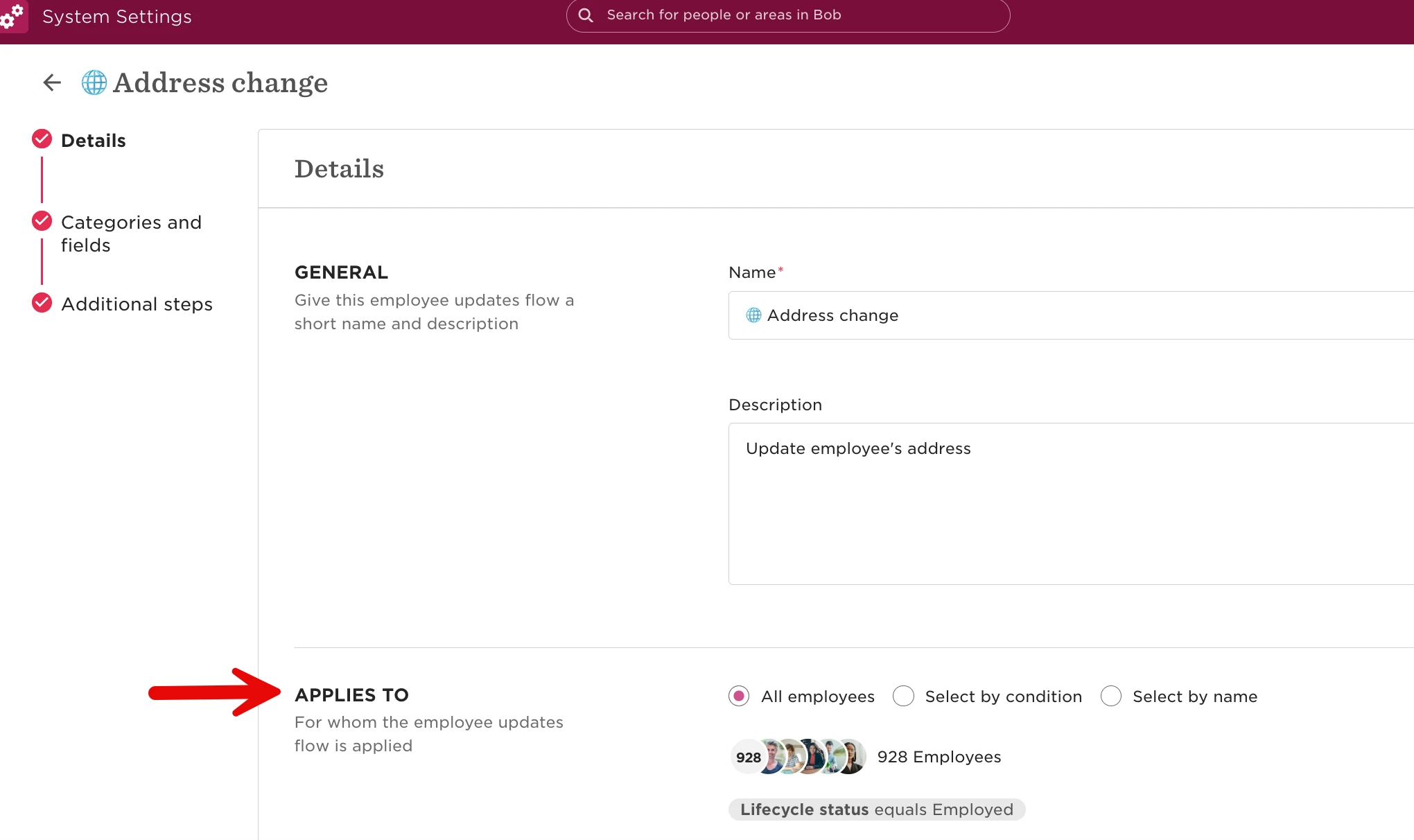
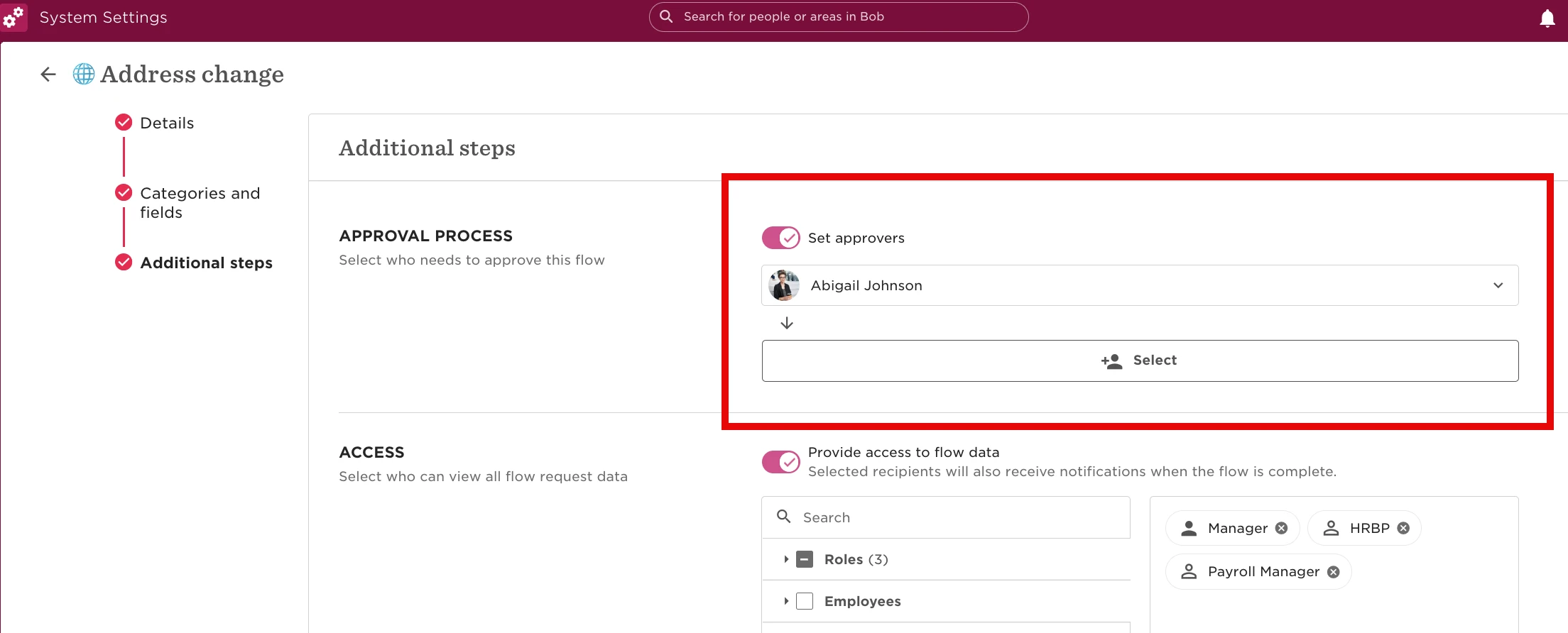
5. Continue to additional steps to review the approver and change it if you need to replace the previous admin with the new admin: