Setting permissions for employees to view their own folders

  • Mar 8, 2023 3:07 PM UTC
  • Sep 22, 2024 7:49 AM UTC
  • 4 replies
  • 318 views
  • Translate All

For employees to have a view of their own folders, please first make sure they are applicable to the folder: 

This can be confirmed in Docs > People’s folders > --> Click on Manage for the folder in question:
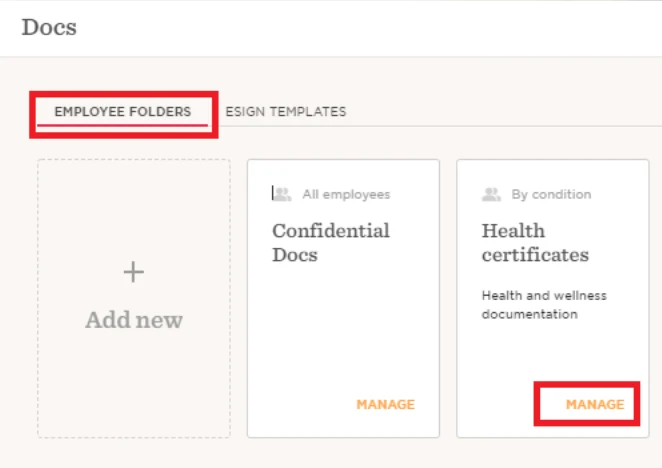
 

In the 'Applies to' part you set up to whom this folder is relevant for: 
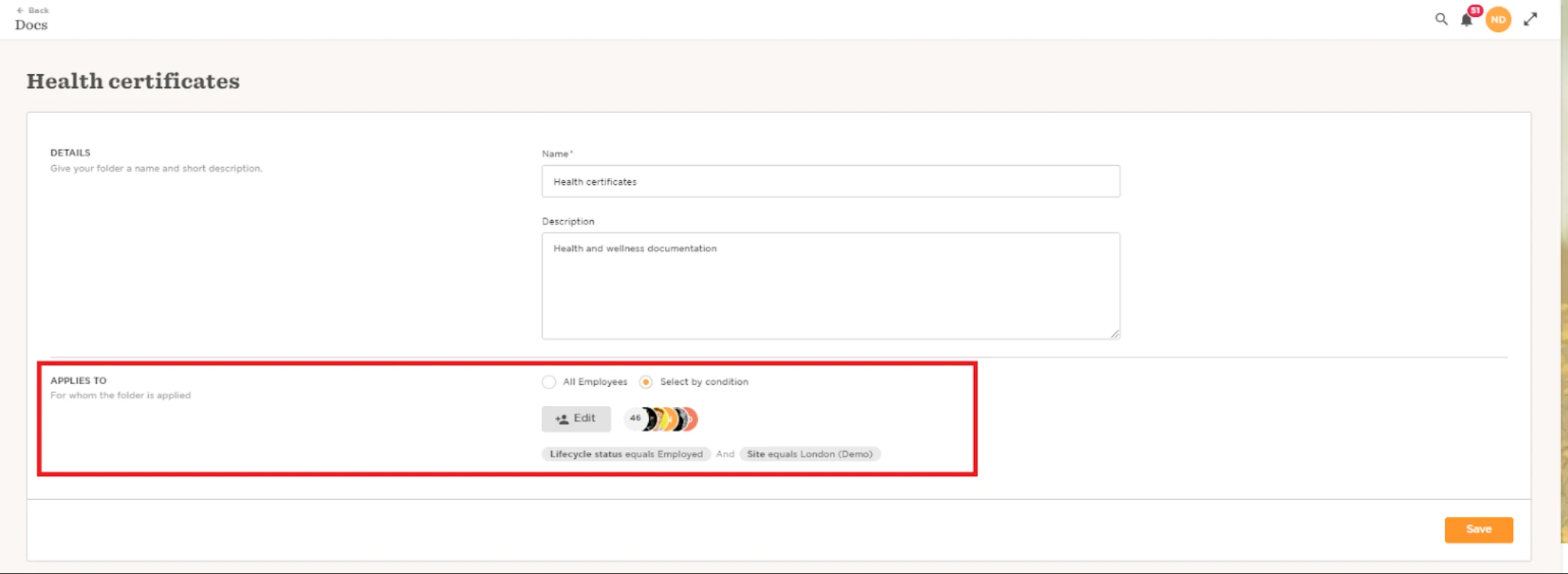


Only employees who are captured in the applies to conditions will actually have the folder on their People's doc page.


Next step is to grant permission to view/edit that folder. This is carried out via Settings > Account > Permission Groups

If you wish to grant permissions to employees to their own folders you would need to tick the view and upload in the Profile owner role:
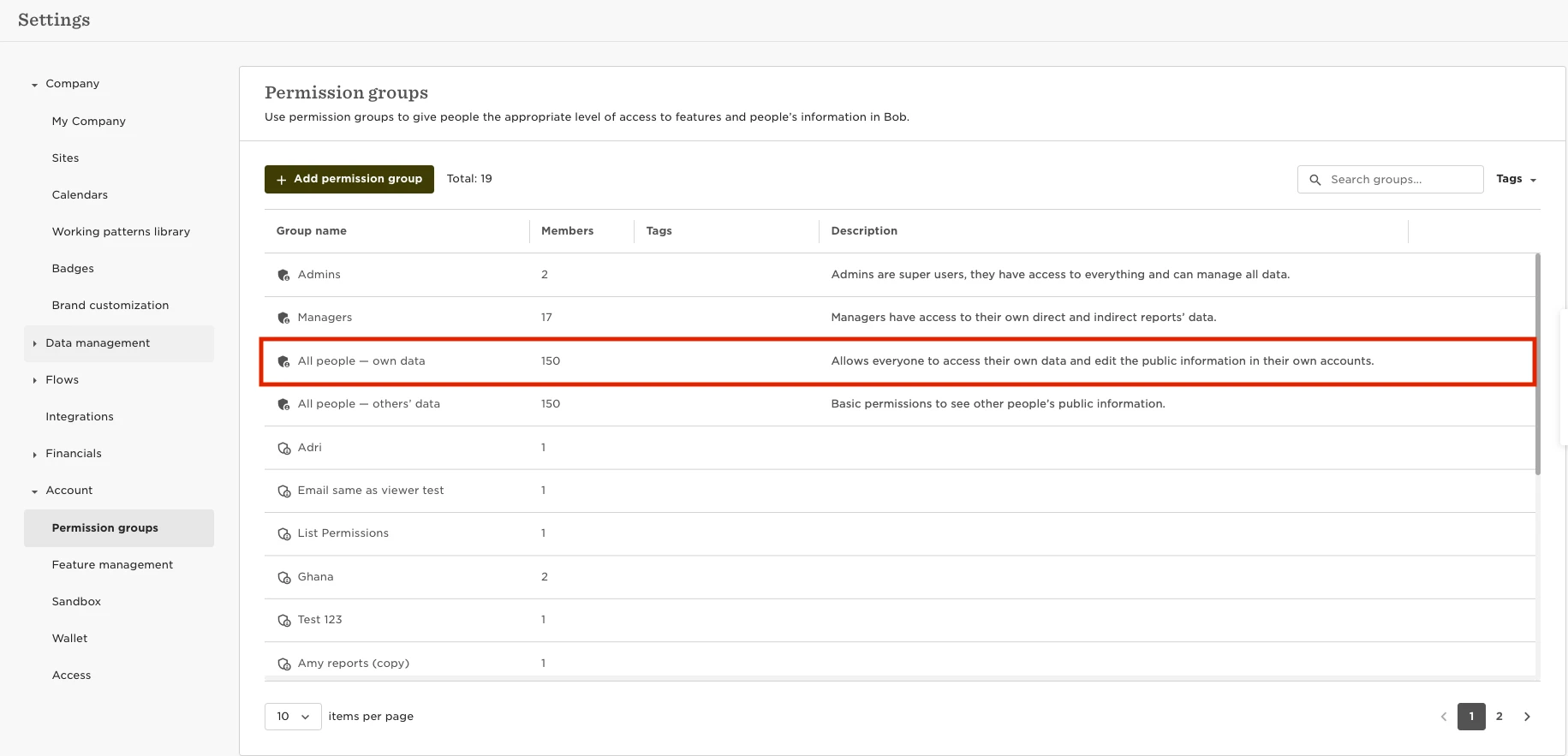
 

Here, in the Docs, you need to tick the desired permissions:



4 replies

Hi, could I have more clarity on this please? What do the conditions on the folders do?


I’ve just tried testing but can’t see any changes with different conditions.

E.g. if a folder has a condition with ‘status equals employed’ does it mean it disappears if status changes to terminated?

Translate

Maital Terdiman
Bobber

hey ​@Sarah.Hardy 

The conditions on the folders determine which employees the folder is relevant for and who can view it. In the context of Hibob, these conditions are set in the 'Applies to' section when managing a folder. Only employees who meet these conditions will have the folder appear on their People's doc page.

For example, if a folder has a condition such as 'status equals employed', it means that only employees with the status 'employed' will see the folder.
If an employee's status changes to 'terminated', the folder will no longer be visible to them (obviously, given that they will no longer have access to bob). You will need to include this status if you would like Admin/other employees who have access to these folders to view the folders and what they contain.

📂

Translate

  • Sep 17, 2025 9:37 AM UTC

What condition or permissions needs to be set for mangers to be able to view direct and indirect reports folders. 

Translate

Netta Brodsky
Bobber

Hi ​@Nichola 👋

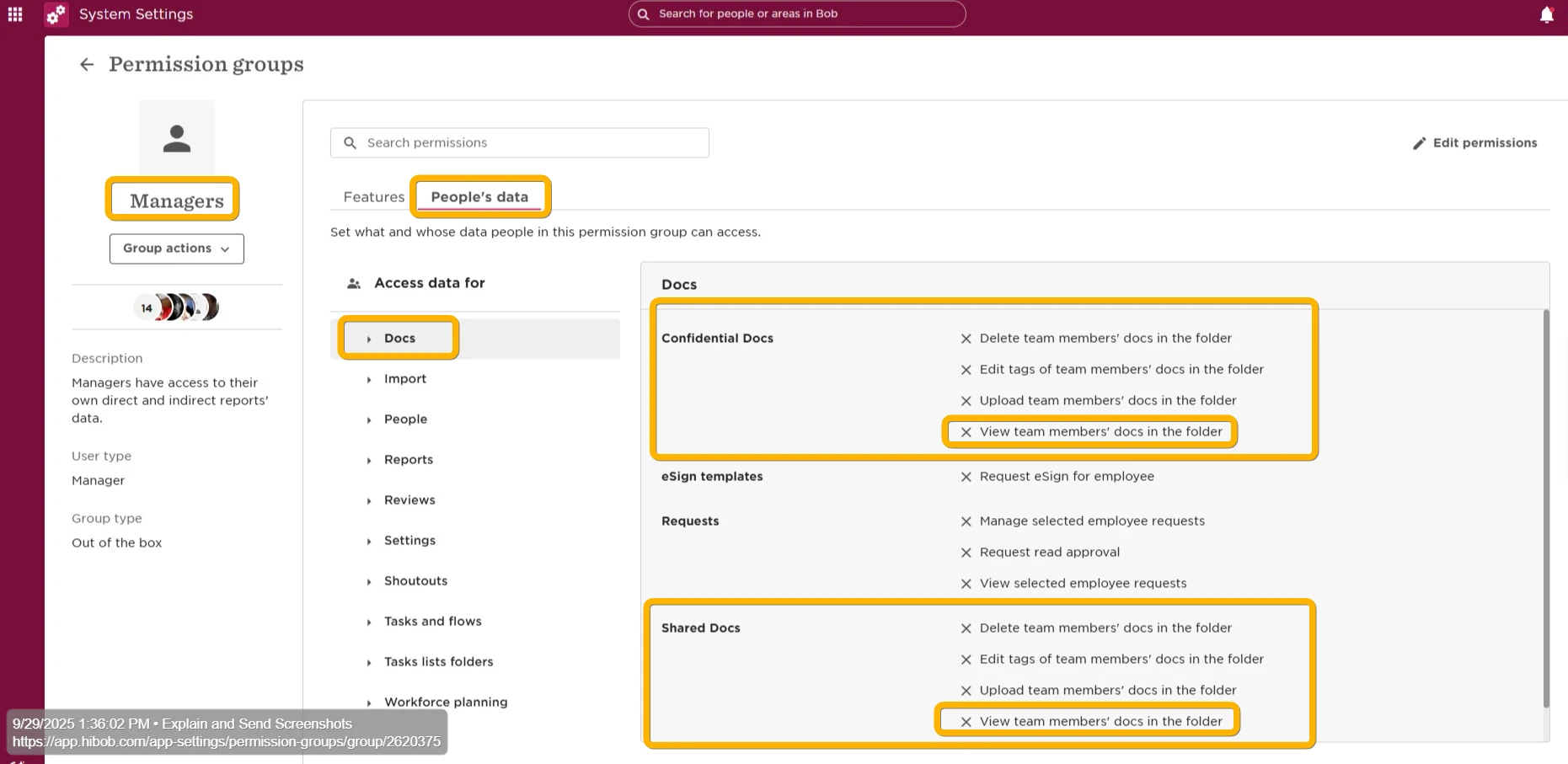
In this case, you’ll want to go into the Managers permission group. Under People’s data > Docs, grant the view permission for the relevant folders.

By default, this permission group applies to both direct and indirect reports, so once the view access is enabled, managers will be able to see their teams’ folders accordingly.


Translate