


If you’ve already sent onboarding documents (such as eSign or Read & Approval) to your New Hire but need to send additional requests or fix/resend document requests before their Start Date, you can update the requests and re-invite the new hire so everything appears correctly in their onboarding flow.
To make this work smoothly, you can follow the sequence below:
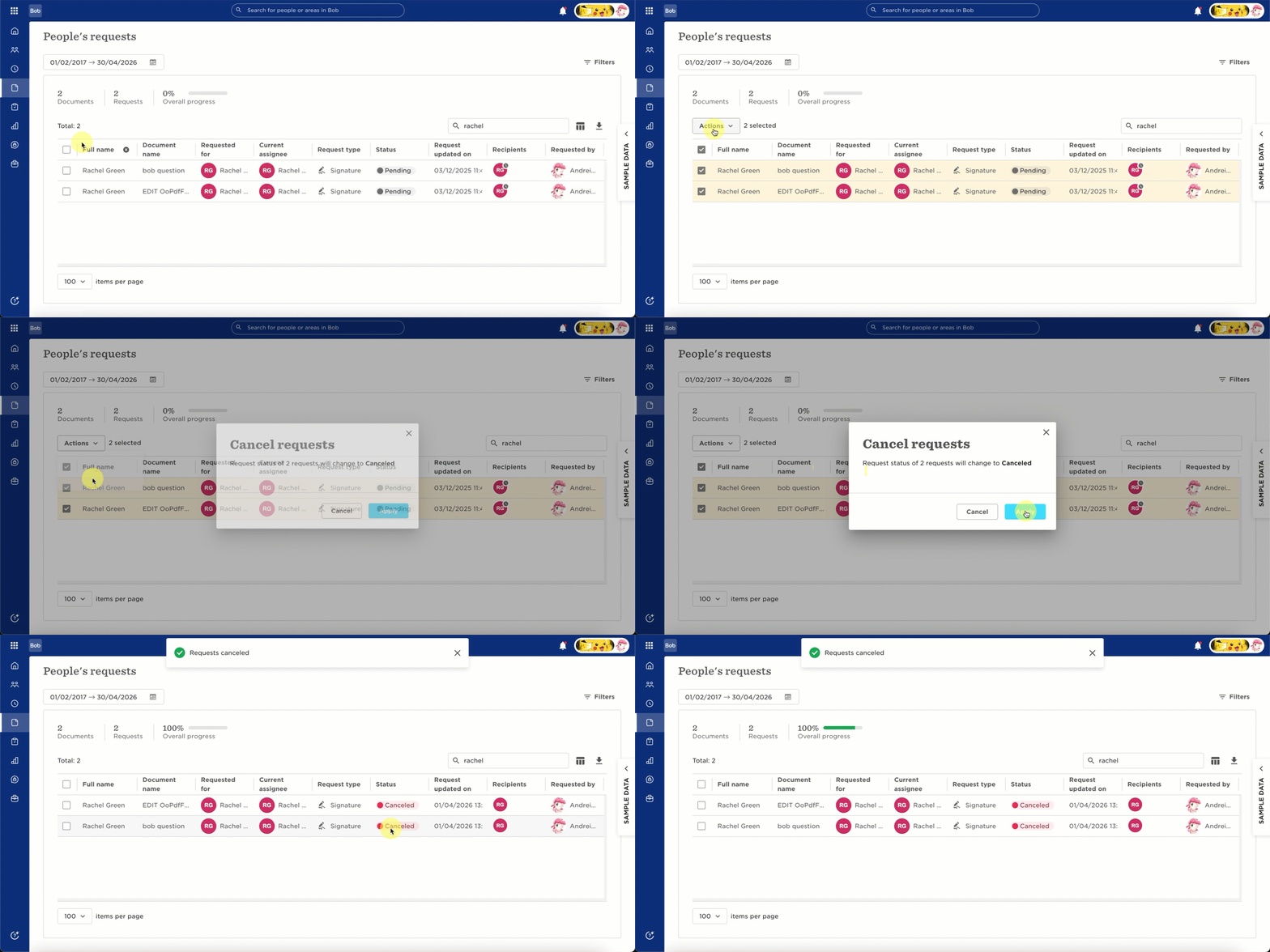
- First, cancel any existing document requests
Go to Docs > People’s requests and cancel the pending requests.
- Create the updated document request
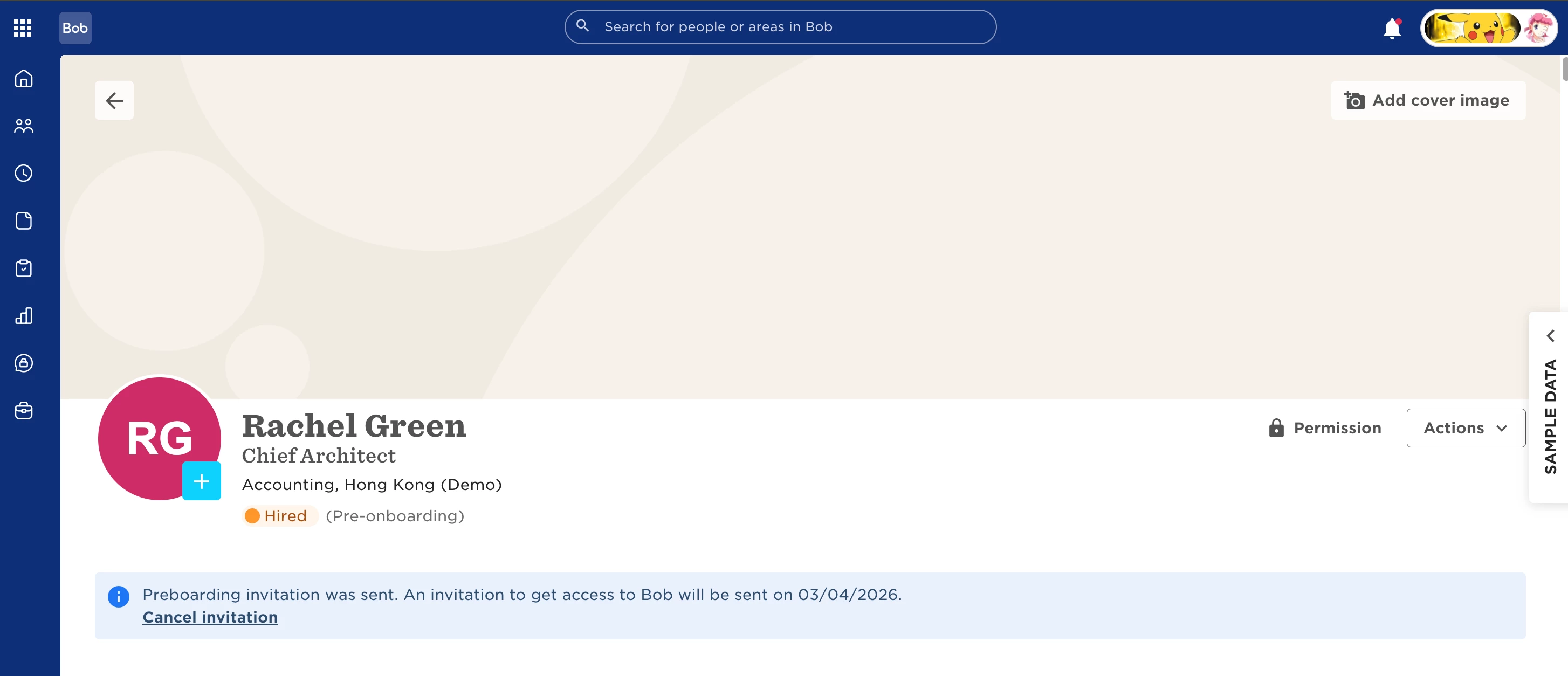
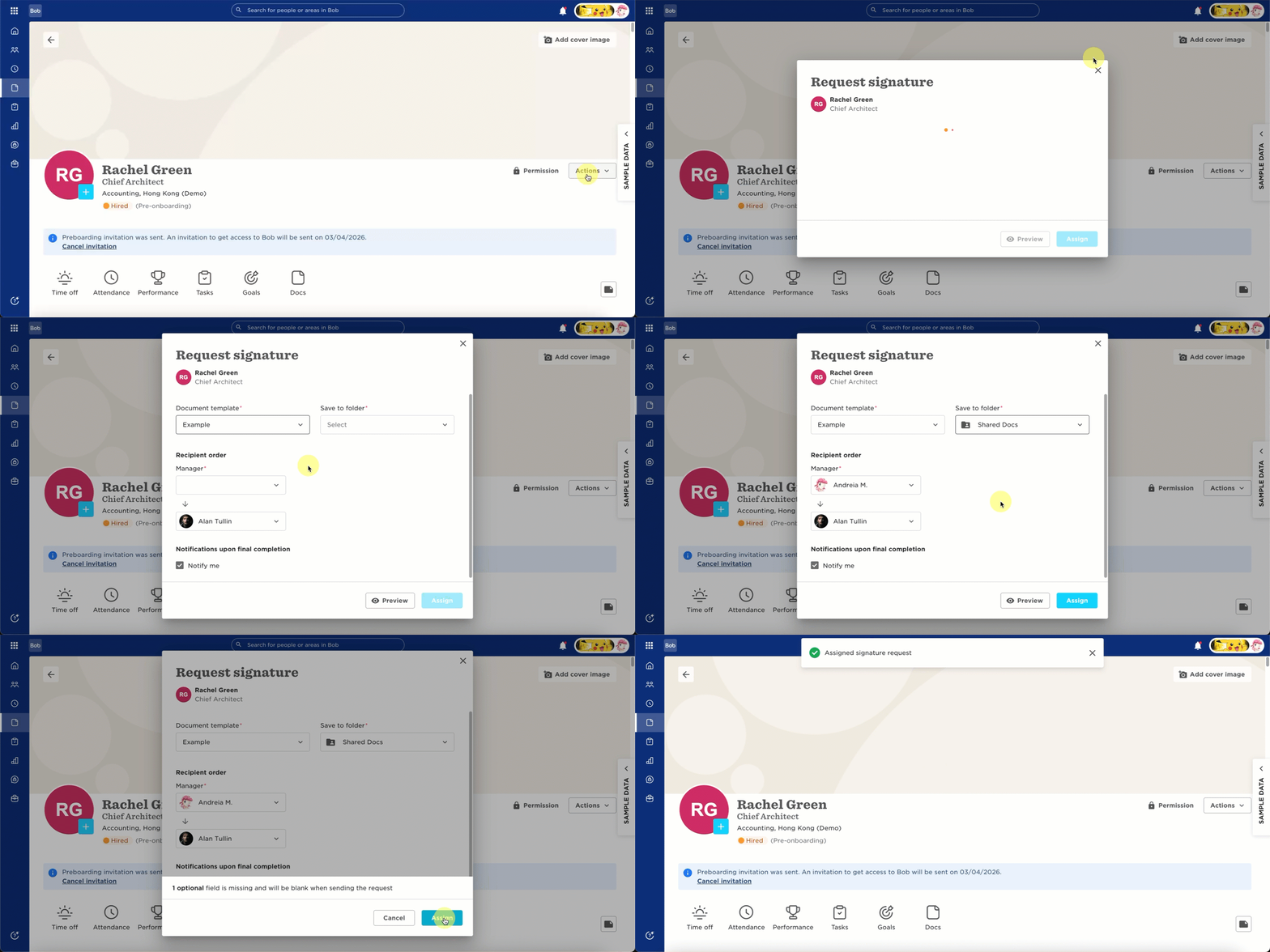
Open the employee profile, then select Actions > Manage docs > Request eSign / Read & approval and add the correct documents.
- Make sure the documents step is required in the onboarding flow
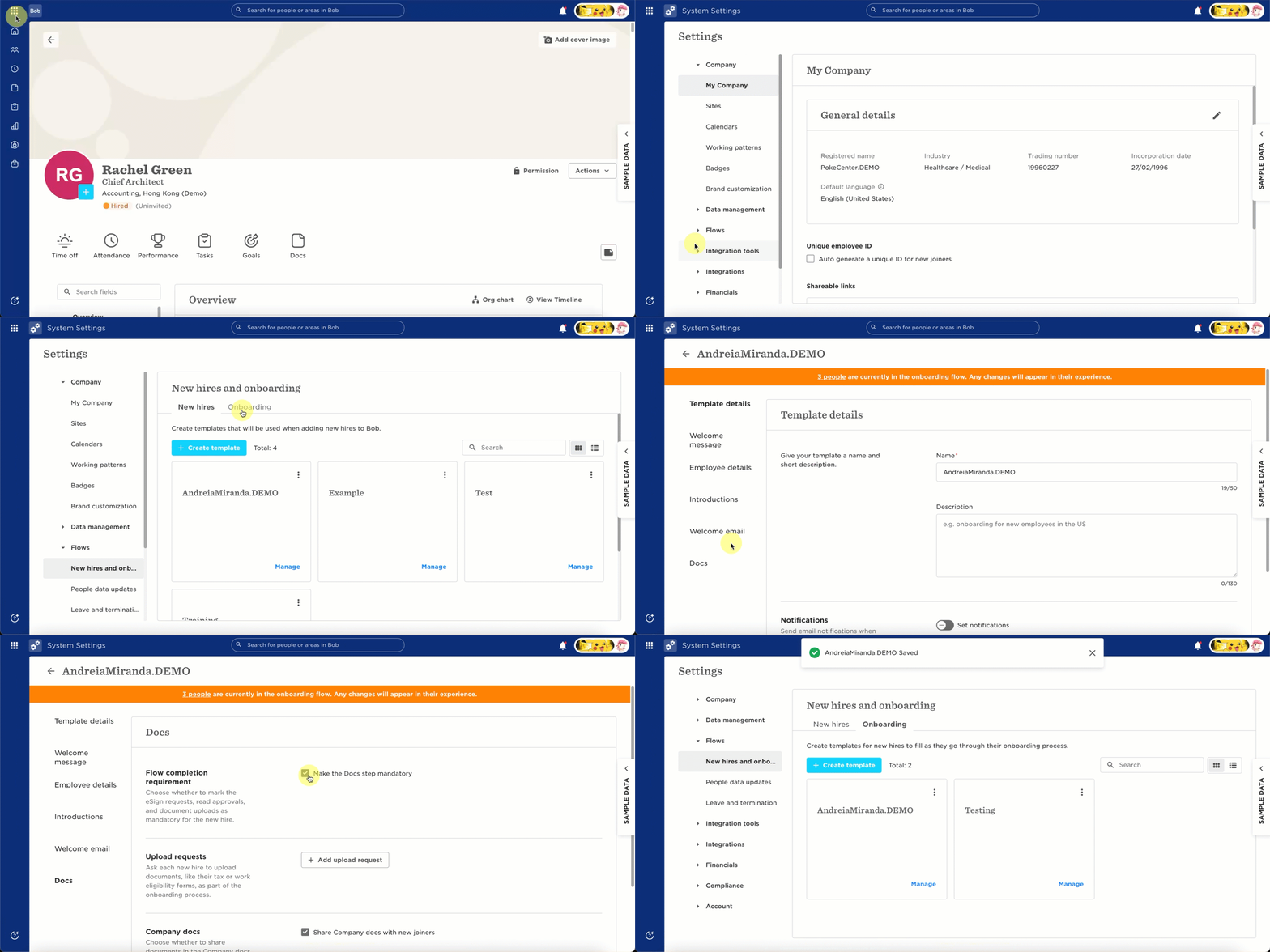
Go to Settings > Flows > New hire & onboarding, open the relevant onboarding flow, and ensure the documents step is marked as mandatory.
- Resend the onboarding invite
Return to the employee profile and select Actions > Manage access > Invite employee, then choose the Onboarding Template.
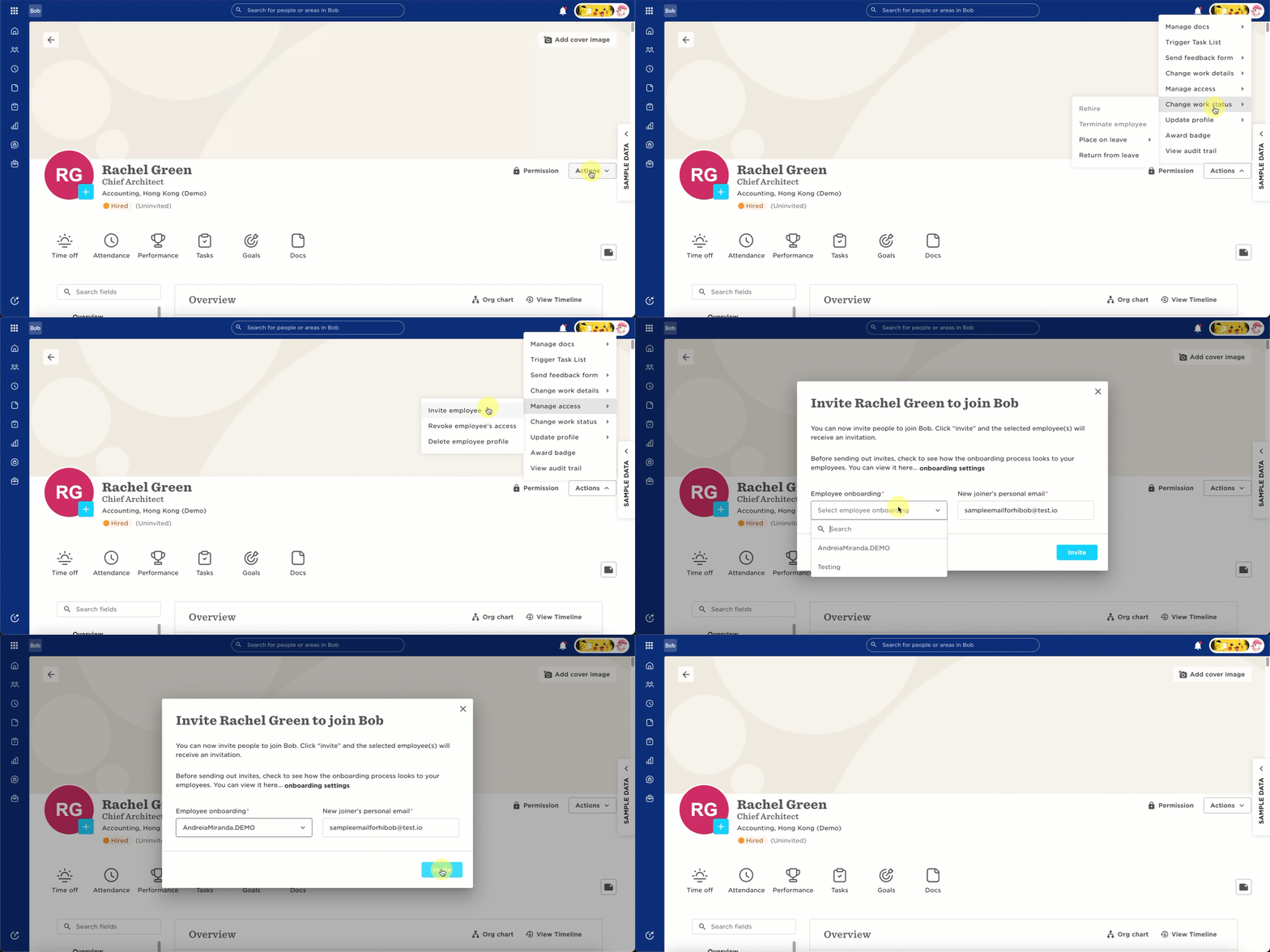
Once resent, the new hire will receive a new onboarding email with an updated link. Any information they already submitted will still be there, and the new document requests will be ready for them to complete.