


If you want to display on-target earnings (OTE) in an e-sign template, you can use a custom field to store and display the pre-calculated value.
E-sign templates don't support formulas that automatically calculate values such as:
- OTE = Base salary + Variable compensation
To display OTE as a single value, create a standard custom field and populate it with the calculated OTE amount.
- Go to Settings > People's data fields.
- Select Payroll or another relevant category.
- Create a standard custom field, such as a number or text field, named On-target earnings (OTE).
- Populate the field with each employee's pre-calculated OTE value. You can enter the values manually or populate them through a bulk import.
- Add the new OTE field as a variable in your e-sign template.
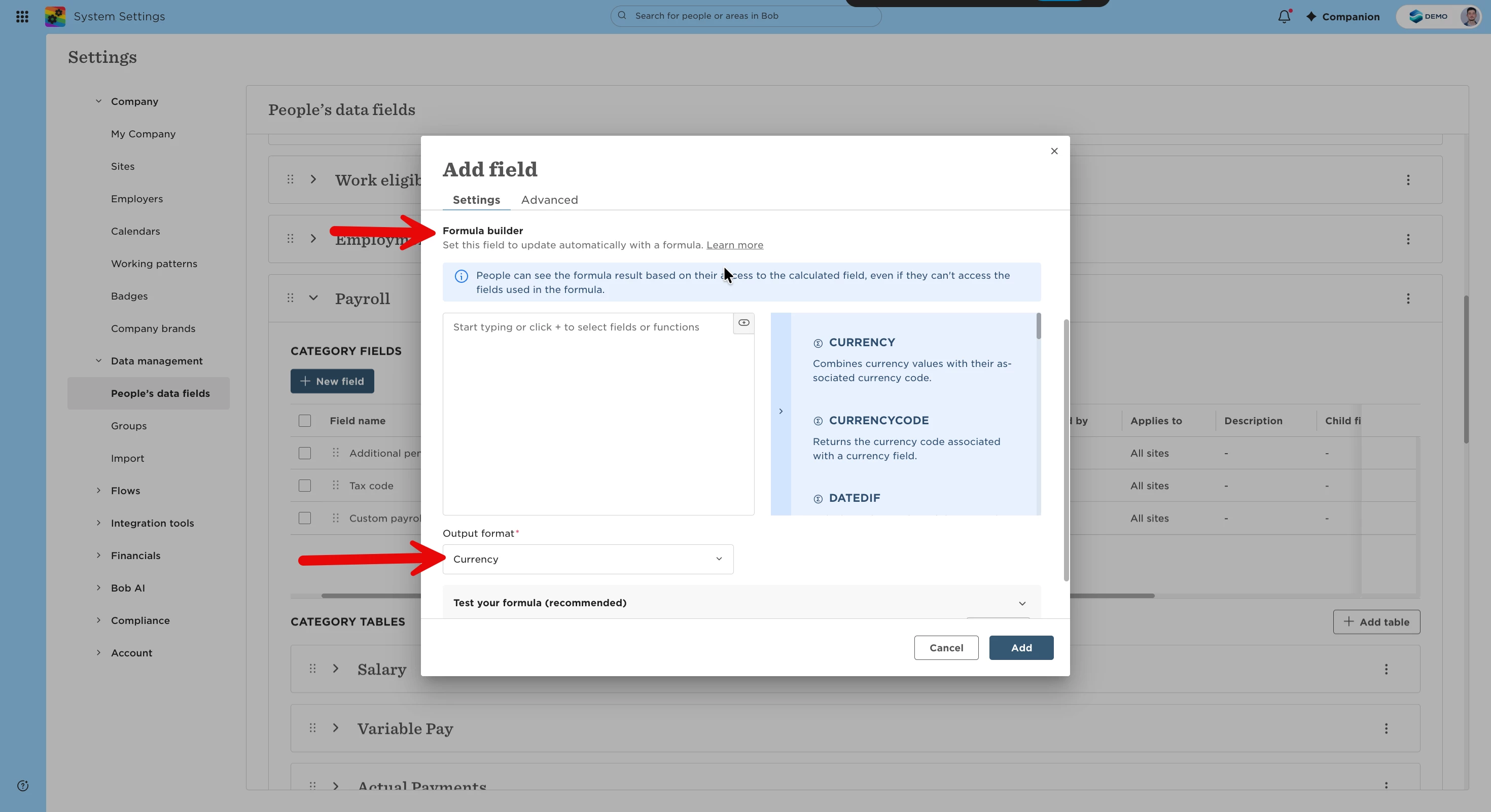
Don't create OTE as a new calculated field. Calculated fields follow fixed system logic and can't be created from scratch with a custom formula. If you attempt to create OTE this way, you may receive an error and the field may not save.
Can I limit the OTE field to specific departments or roles?
No. Custom fields are created at the company level and can't be configured to appear only for specific departments or roles.
You can control who can view or edit the field using permissions. For employees where OTE isn't applicable, leave the field unpopulated so it remains blank on their profile.
Can I use variable compensation directly instead?
If variable compensation is stored in the Variable Pay table, you can search for the relevant Variable Pay field in the e-sign template builder using the Variable Pay type name, such as Bonus, together with the relevant field name.
This allows you to display base salary and variable pay separately in the template, but Bob won't automatically calculate them into a single OTE value.