What the Attrition Widget in Dashboards Takes Into Account

  • Aug 15, 2025 6:15 PM UTC
  • 1 reply
  • 318 views
  • Translate All

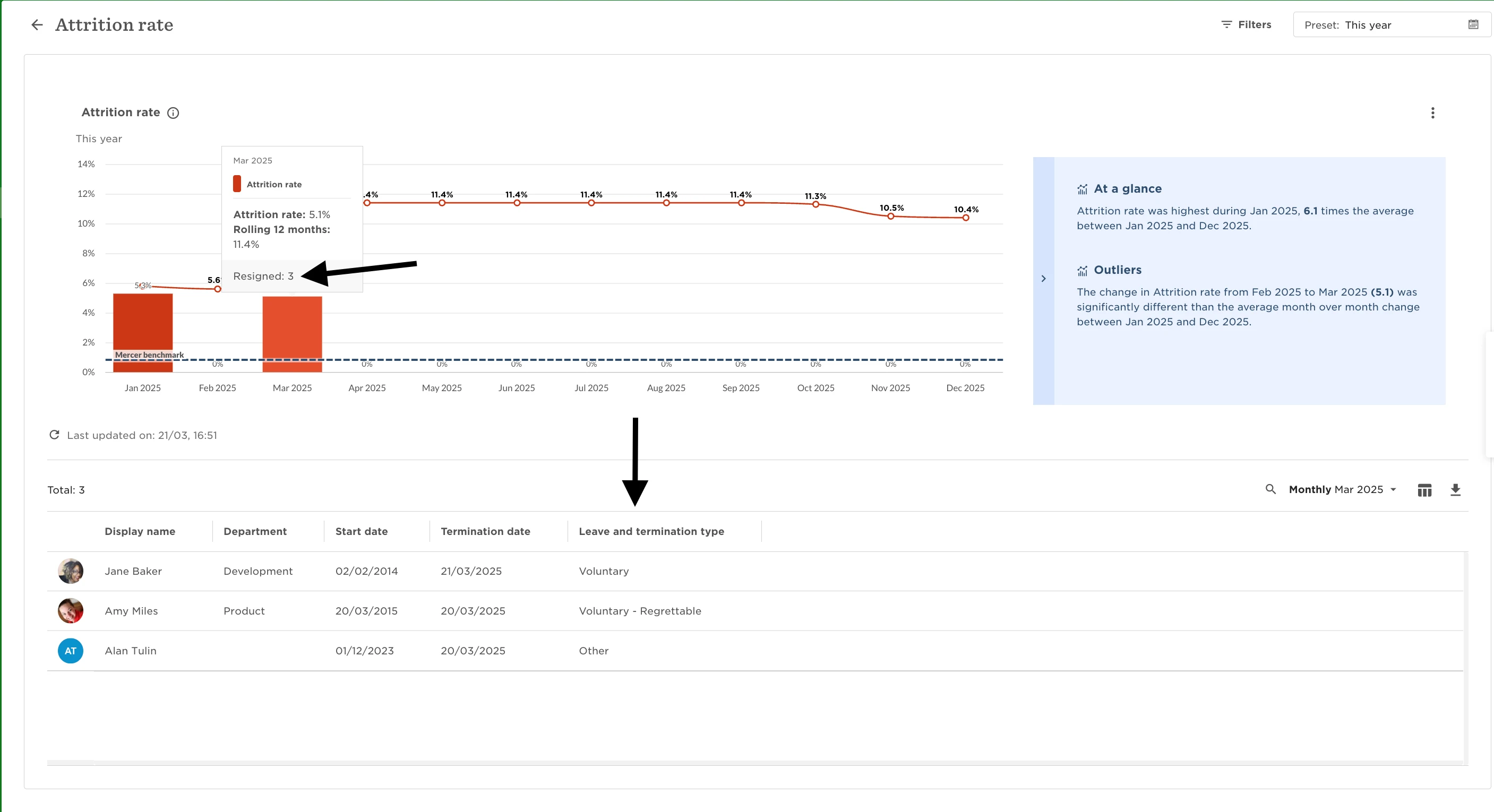
The Attrition widget in your dashboard includes all leave and termination types selected in your dashboard configuration—not just resignations.

When you hover over a bar in the widget, it may display the label “Resigned,” which can be misleading. In reality, the data reflects all termination types included in your configuration, including any voluntary types beyond resignation.

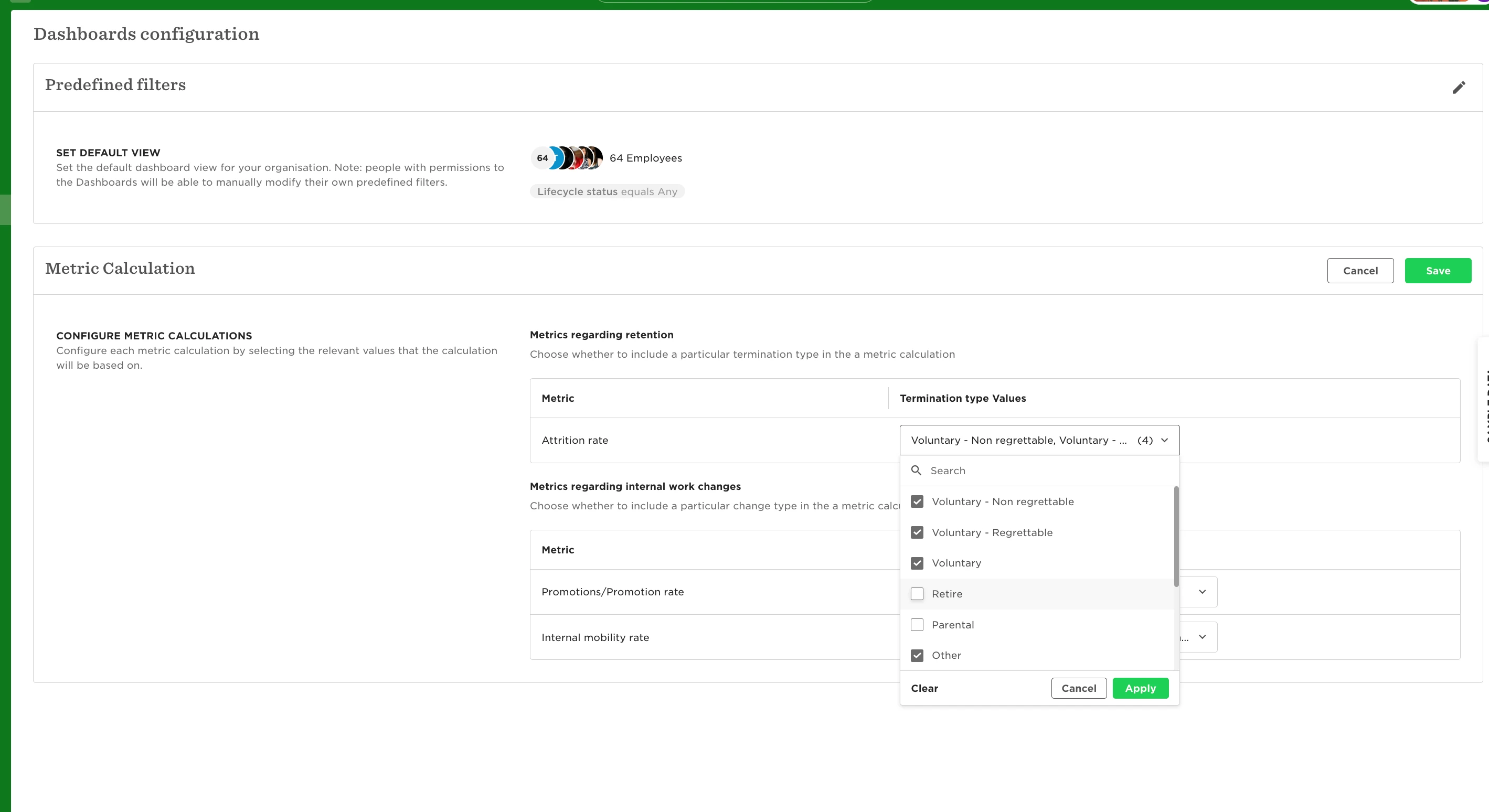
To check which types are factored into your attrition calculation:

  • Go to Analytics > Dashboards configuration

  • In the Metric calculation section, click the pencil icon

  • Under the Attrition rate metric, review the selected termination types

  • Apply changes if needed

    Note: This update applies to all dashboards across the company
For more details on how attrition is calculated and how this widget fits into the broader dashboard view, see:

1 reply

Karen Stewart Longest

This is helpful ​@Tomás Machaqueiro! Thanks for sharing. At my last place, we inherited a system of attrition meeting very specific requirements, so we had to set up a lot of different types of terminations. For other companies that have this need, we ended up setting up field dependencies so when we were running other reports, it was easier to decipher. 

For example, voluntary leavers that had not completed the probationary period did not count towards attrition (not my choice), but we still wanted to know all voluntary leavers. We had the leaver as “voluntary: within probationary period, regrettable” or “voluntary: within probationary period, non-regrettable.” Both would trigger the field dependencies of “Voluntary” and “within probationary period” and then would trigger either “regrettable” or “non-regrettable.” This made it easy to pull reports of all the leavers that met specific criteria even though they would show up on turnover and maybe not attrition.   

Translate