

Customizing Dashboard Colors in Bob with Brand Customization
Your ability to define how dashboards look and feel in Bob just got a lot better! With our new Brand Customization feature, you can now set up a custom color palette that will be automatically applied across all dashboards. This enhancement allows you to align the platform with your company’s branding more effectively.
Setting up your custom color palette is straightforward. Here’s how you can do it:
- Navigate to System Settings > Company > Brand Customization.
- Open the Platform Branding section.
- Create a new color palette or update an existing custom one.
- Select the colors you want to use in your dashboards.
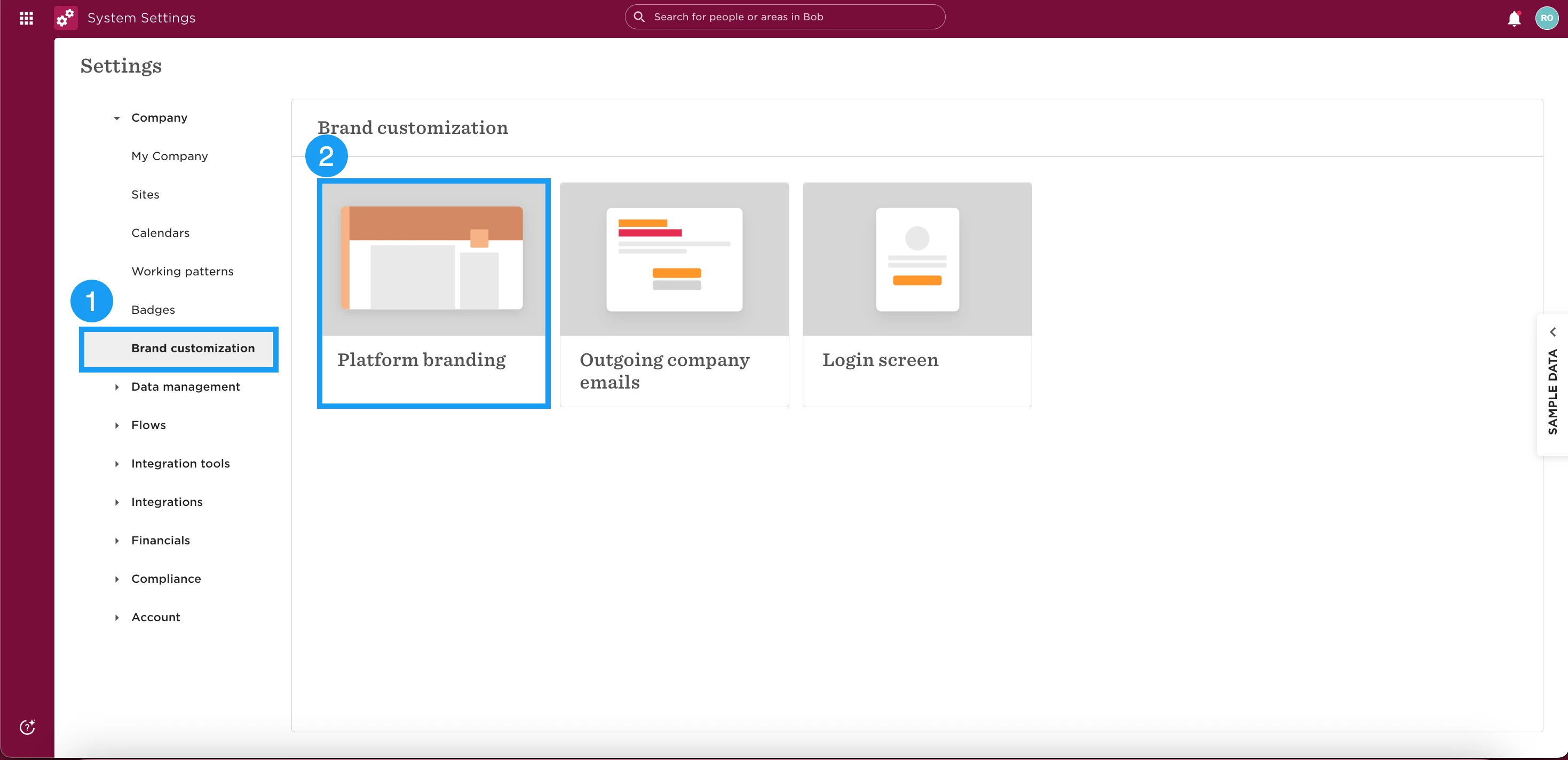
Once you have saved and selected your new palette, all dashboards on Bob will update to reflect your chosen colors.
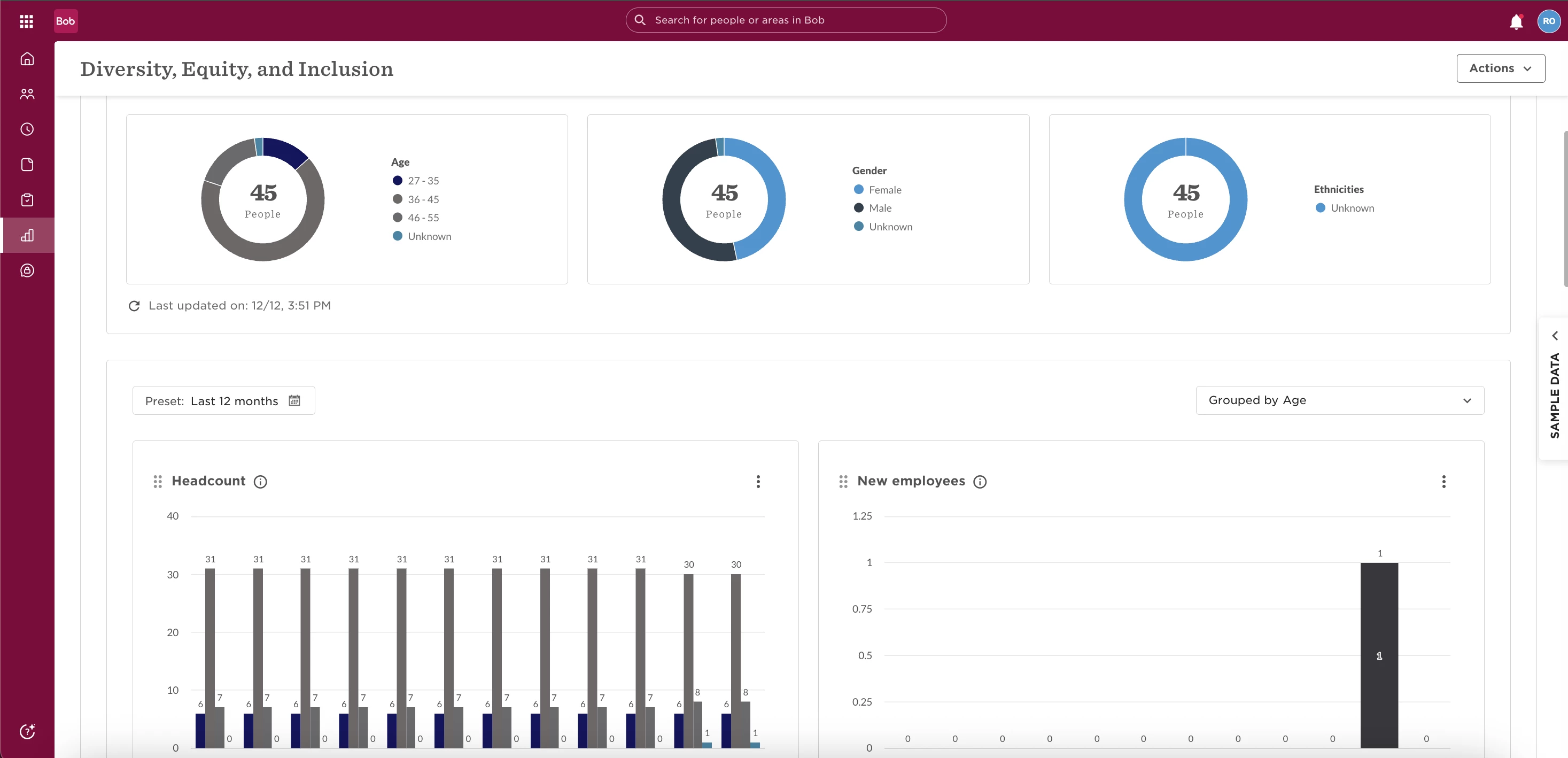
💡 Tip: Review your color choices to ensure they are visually appealing and align well with your company's branding. Consistent and professional color usage can significantly enhance the visual coherence of your dashboards.
By leveraging Brand Customization, you can make Bob’s interface more relatable and engaging for your organization. Dive in today and create a workspace that truly represents your brand!