

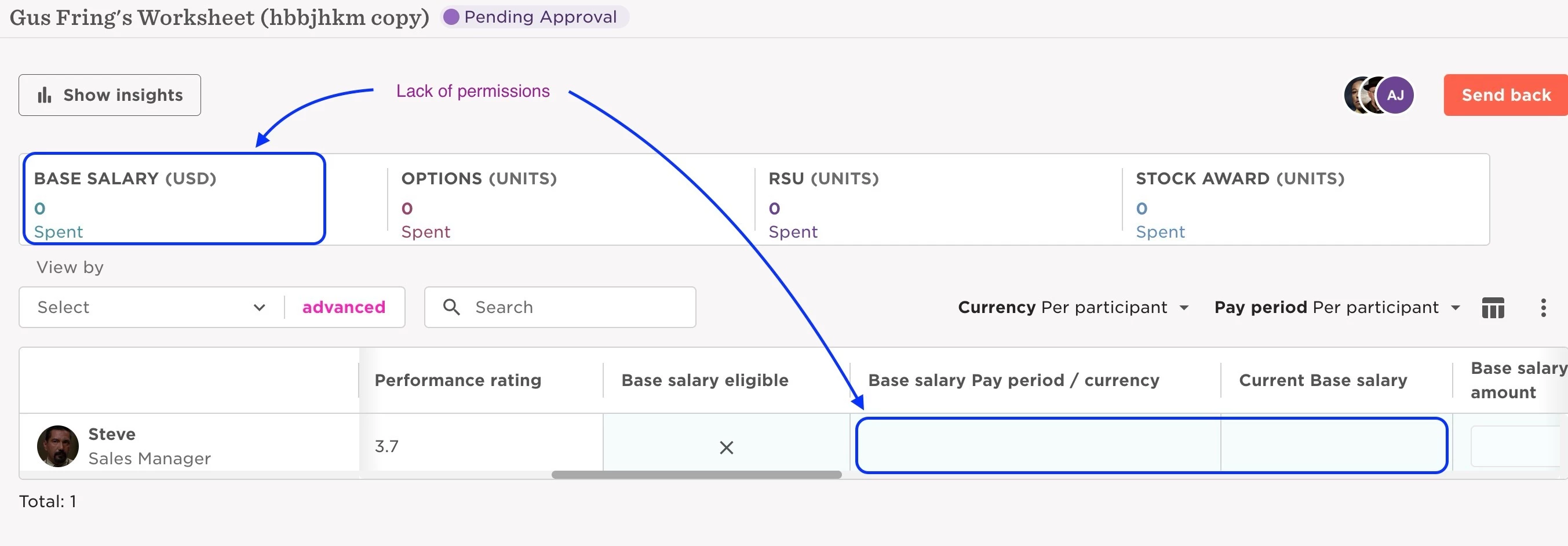
When a planner cannot access the total budget of their worksheet and/or event, it means they are missing permissions for at least one of the participants in the worksheet. You will need to check what is the condition for the worksheet, and if the planners are included in a permission group with the correct permissions (Payroll and Employment tables) with access to all the participants.
Usually, compensation events are assigned by reporting line, so if the permissions for the Payroll and Employment categories in their teams profiles are already enabled in the "Managers" permission group, no additional changes are needed. However, there can be cases where the "Managers" permission group doesn't allow access to employees who are on "Leave" or "Terminated".
Example 1: An employee is terminated while the compensation event is running. The manager had access to the budget, but from the termination date of their employee, they cannot see the budget any more. The solution here could be to change the "Access Rights" of the "Managers" permission group to allow access to their teams employees in other lifecycle statuses, like "Terminated", "Garden leave" or any other type of "Leave" (either for the duration of the compensation event or permanently).
Another case could be that the planner isn't the manager of the participants in their worksheet, and will need access to the participant's Payroll and Employment categories.
Example 2: The planner has access to see their HR teams Payroll and Employment categories, but not to other participants who are in their worksheet. If they don't have access to one or more participants, that would make them lose access to the total budget, as it can't be calculated without that employee(s) payroll.
On both examples, you can create a custom permission group for the planners of the compensation event, and even delete it after the event is ended (if no longer needed).
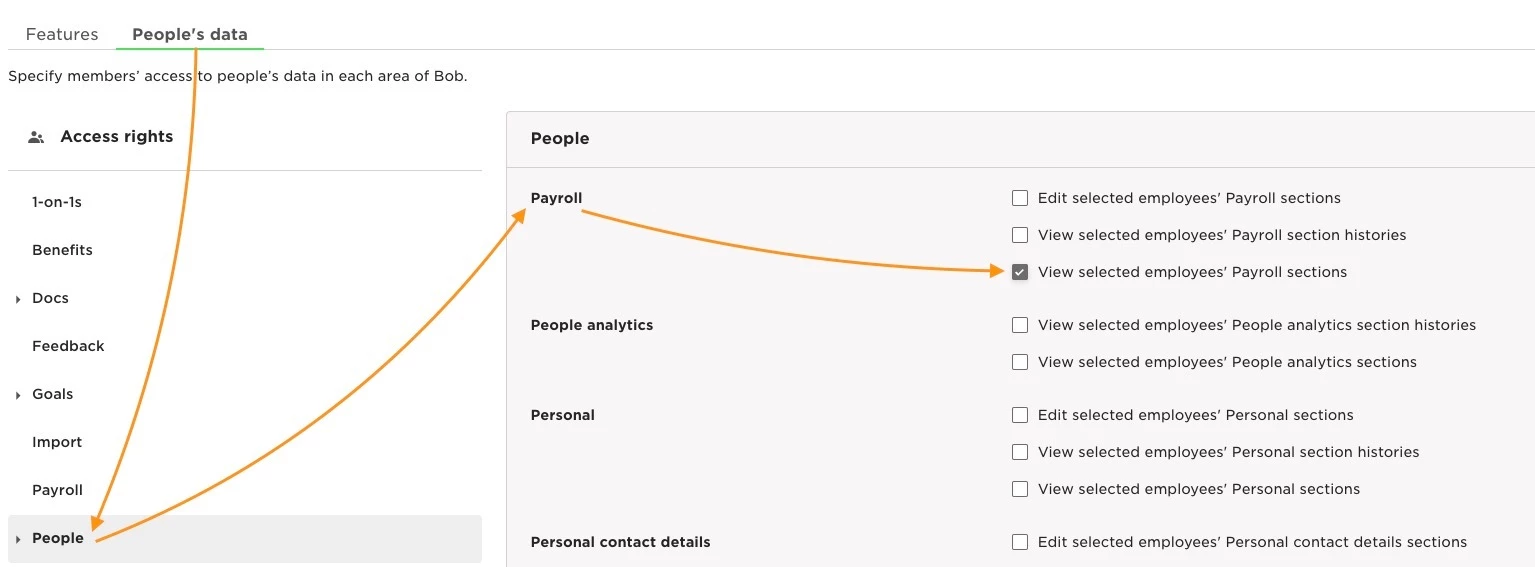
To give the necessary permissions, go to Settings > Account > Permission groups, create a permission group for the manager and make sure you give the permission to view the payroll information and the payroll history of all employees in the Worksheet:
We remind this is also mentioned in the FAQ's of the "Set up a compensation event" article of the Help Center.