This relates to a time-computing difference between systems. Whenever a daylight savings time change occurs, the system will need to be adjusted in order to match this again. For example, if the time zone in your Google/Outlook calendar has automatically changed to GMT +1:00, in HiBob the site settings need to be changed to match the same as in the Google/Outlook calendar.
For this, go to:
- From the top left, click Bob products
- Select System Settings
- You will find, at the bottom of the left menu, the option Company
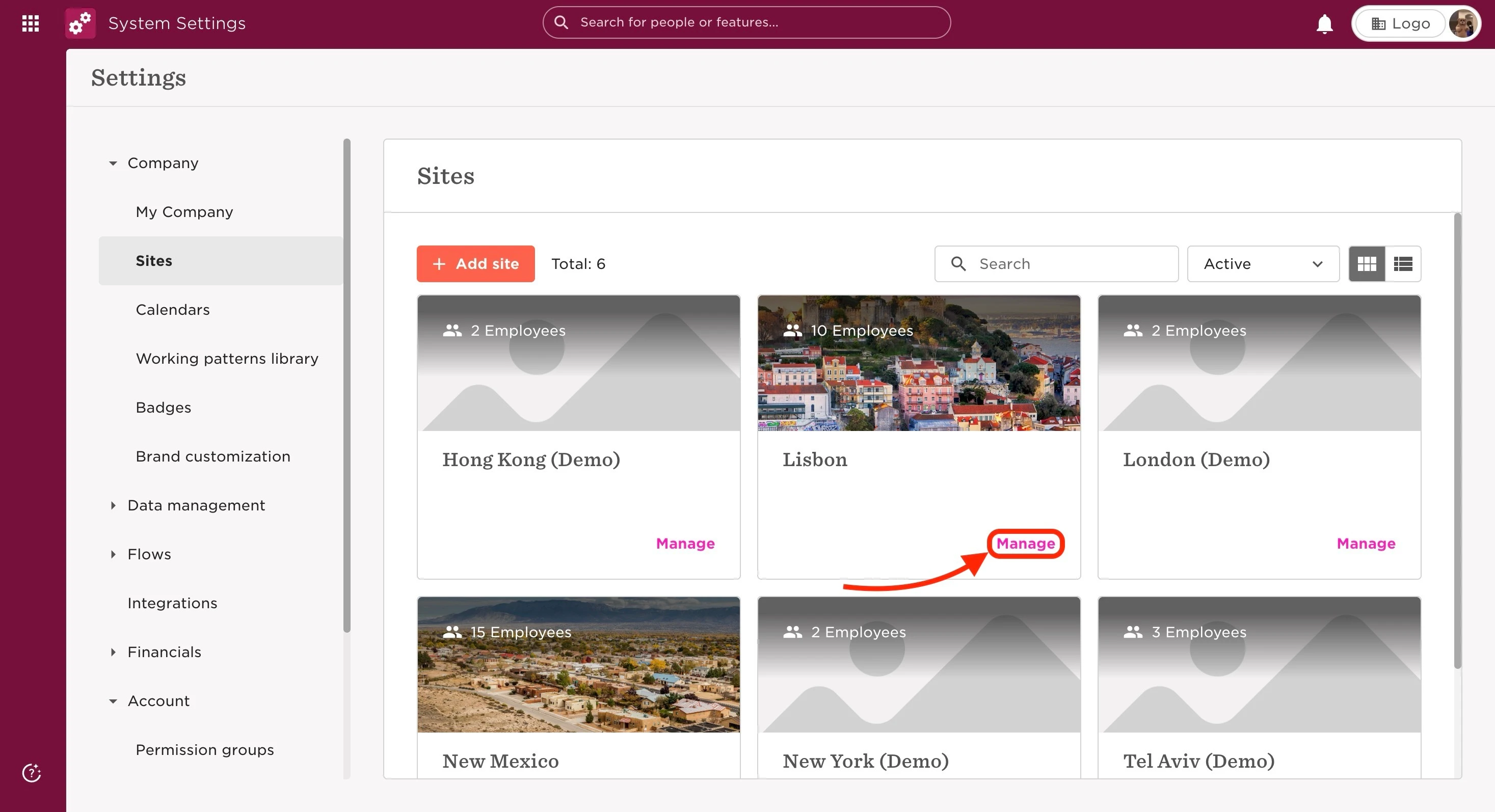
- By expanding it, you will see Sites and click on it
- On the intended site, click Manage
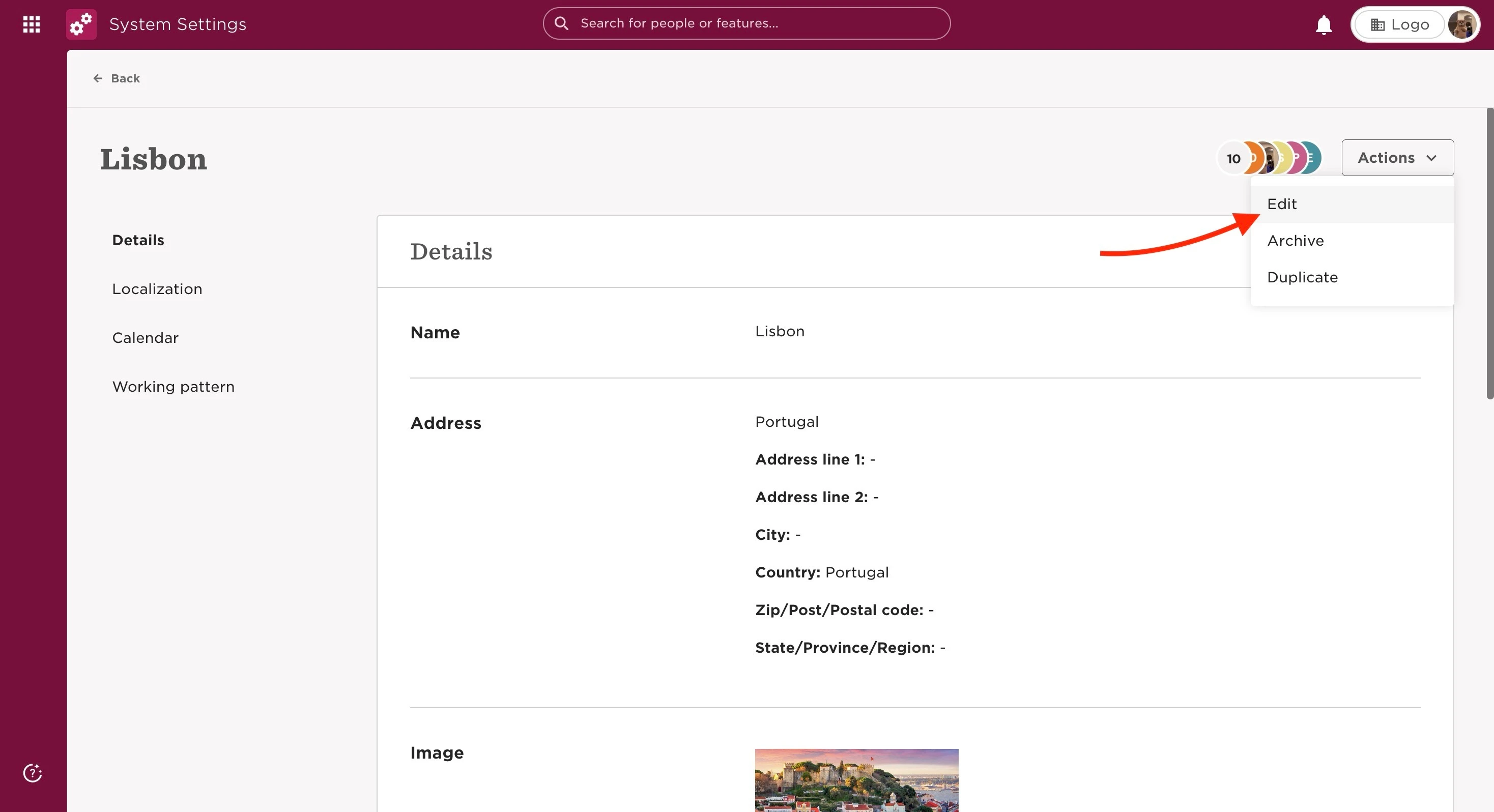
- In the Actions dropdown menu at the upper right, select Edit
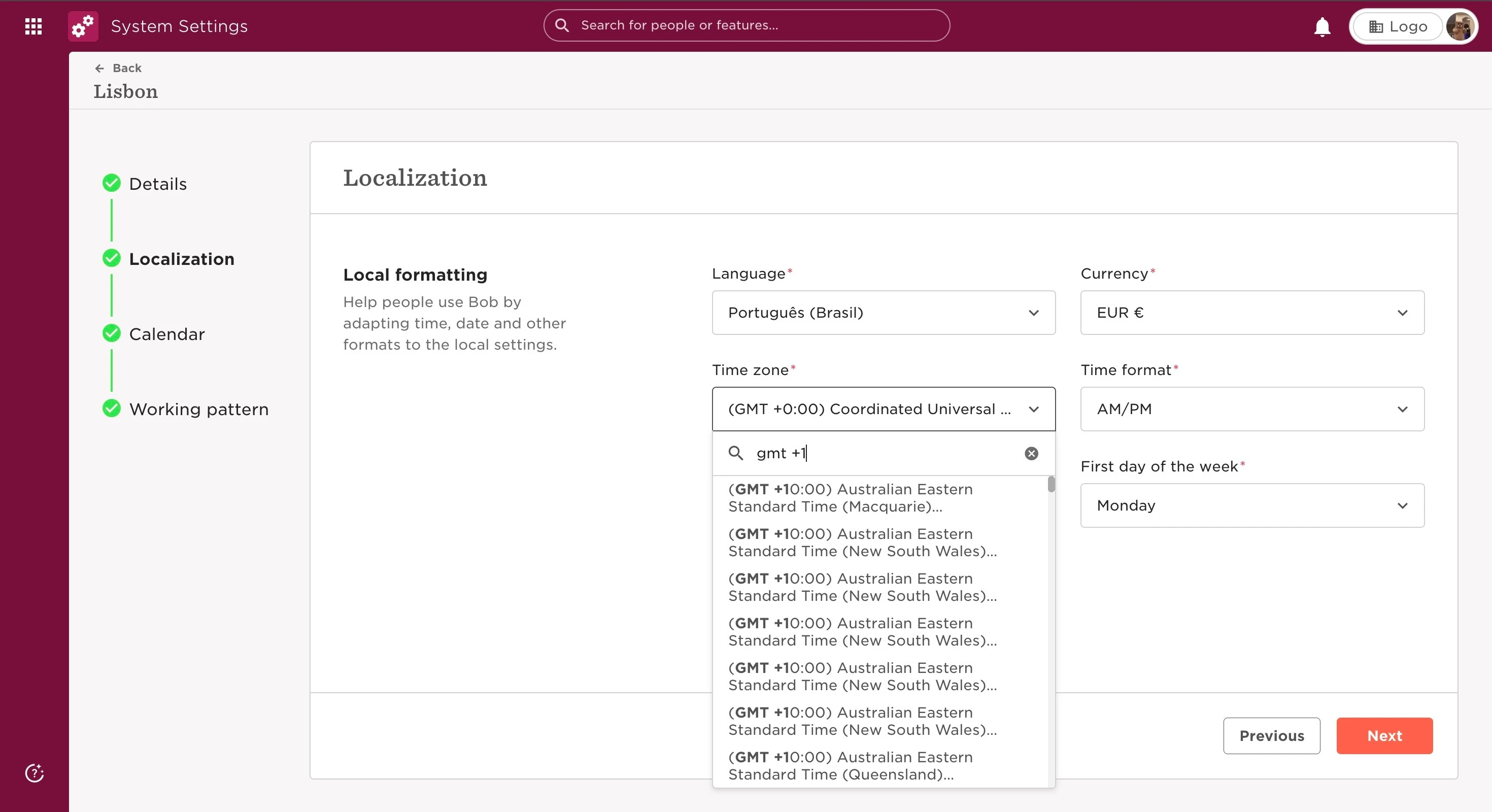
- Once the editing space is open, you will need to go to the Localization section
- The Timezone field should be changed to GMT +1:00 (or other, please select the most appropriate option).
For any details on how to change Site settings, be sure to check the "Add a site" article, from HiBob's Help Center.
Last updated on June 29th, 2024